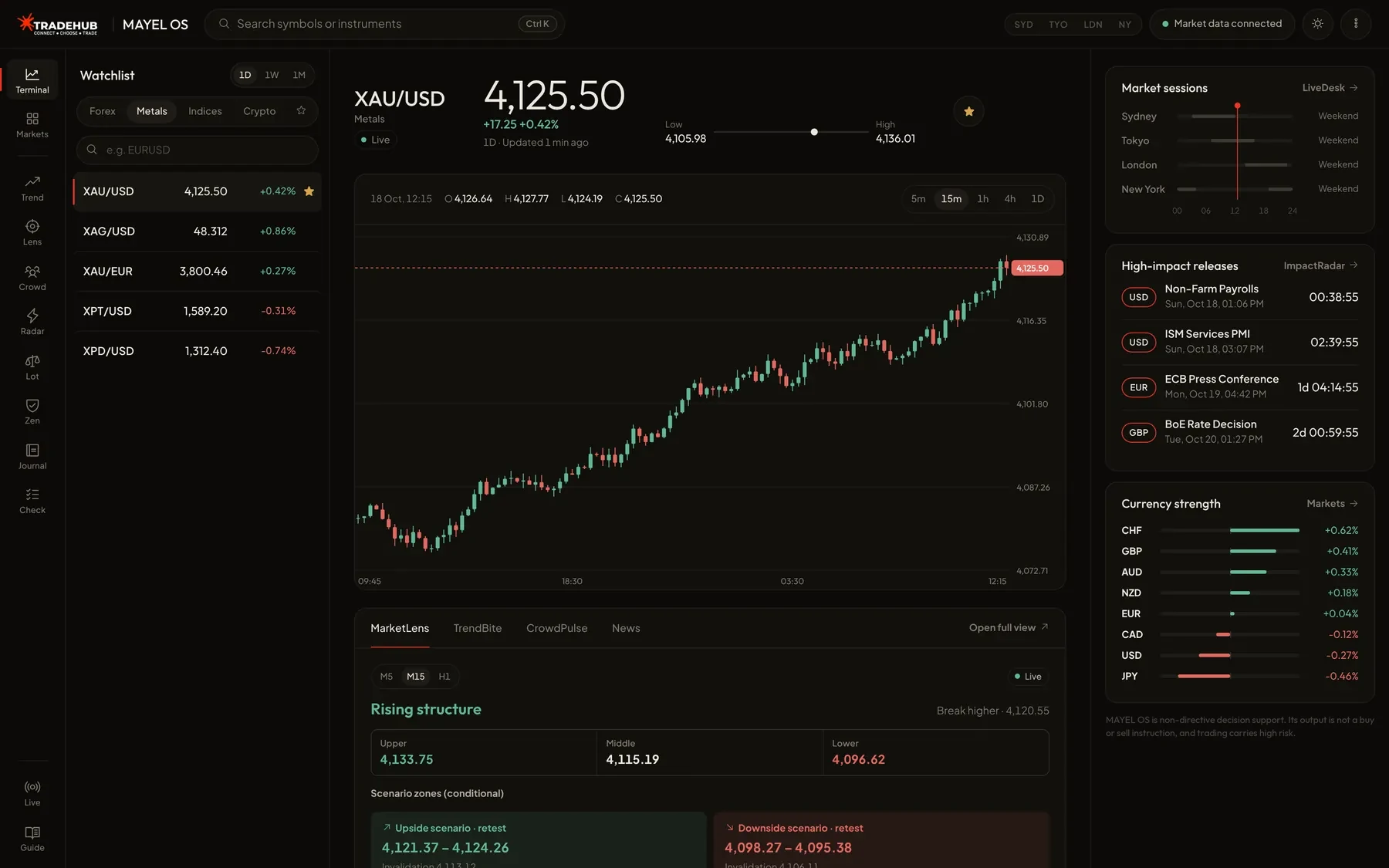


八款工具,帮助您发现、防护、管控和评估交易决策。Nexus Vizion 负责解读数据,决定权在您手里。打开 Nexus Vizion 工作区,即可使用其中的计算器、日志、清单和联动工具。
- Status
- 已上线,免费
- 发布
- 2026年10月,1.0 版本
- 交易品种
- 8 款平等工具,分 4 个阶段
- Mode
- 手动:从不下单
- 名称
- Network for Exchange Intelligence & Unified Strategy
- 客户资金
- 由经纪商处理,而非 TradeHub
Nexus Vizion 已发布,无需登录即可免费使用。依赖实时数据的工具会显示 Data Hub 状态:实时、延迟或休市。Nexus Vizion 是非指令性的分析与纪律辅助工具,不是信号服务,也不构成投资建议。TradeHub 不管理客户资金。交易风险很高。
我们为什么开发它
大多数交易者失败,是因为决策疲劳和违背自己定下的规则,而不是缺乏洞察力。
旧方式
- 屏幕、日历和图表太多,难以清晰决策。
- 决策主观,容易受 FOMO 和短期价格波动左右。
- 凭感觉定手数,亏损上限只记在脑子里。
Nexus Vizion 的做法
- 八款平等的工具,集中在一个控制室里。
- 每个结果都附带数据来源和数据时效。当数据不适合使用时,工具会保持沉默,而不是猜测。
- 仓位大小来自计算,亏损上限来自您自己设定的规则。
系统地图:四个阶段,八款工具
阶段只是用于分组和导航。八款工具地位平等:没有层级之分,也不是必须依次遵循的顺序。
- 01发现3 款工具
- 02防护2 款工具
- 03管控1 款工具
- 04评估2 款工具
查看 Nexus Vizion
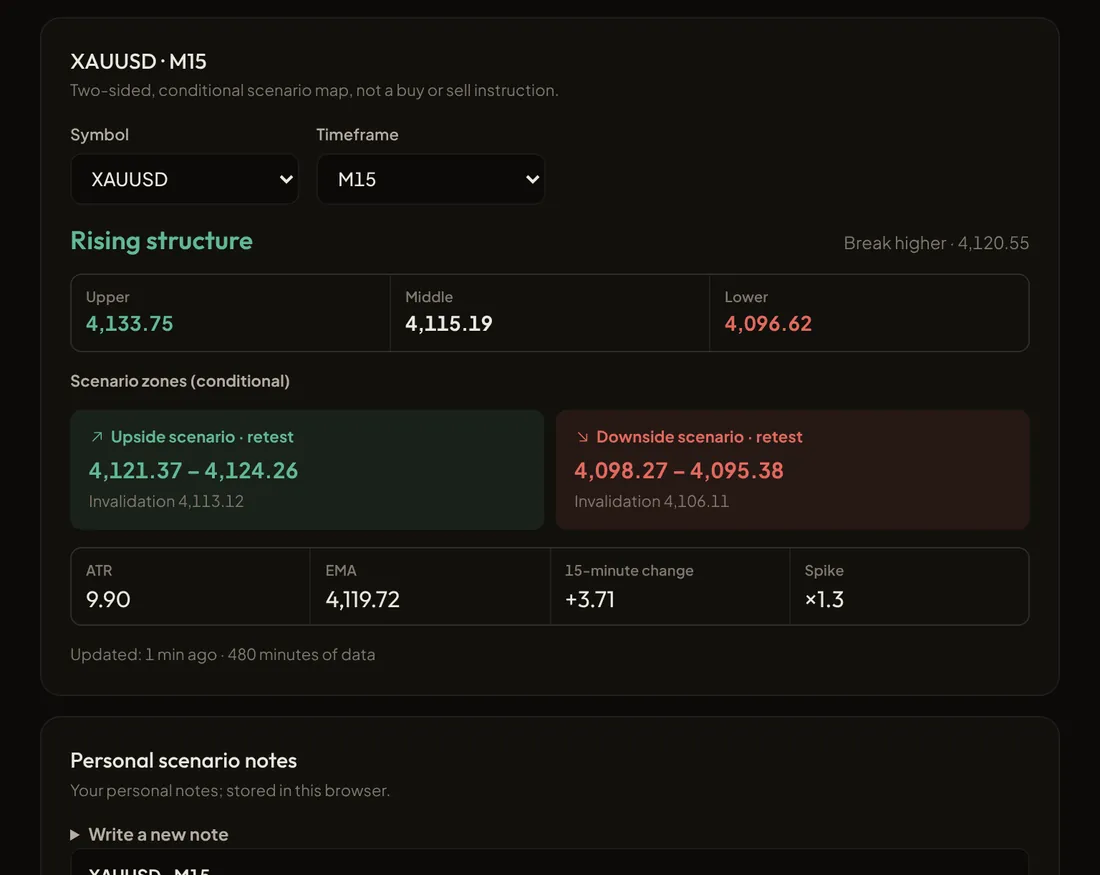
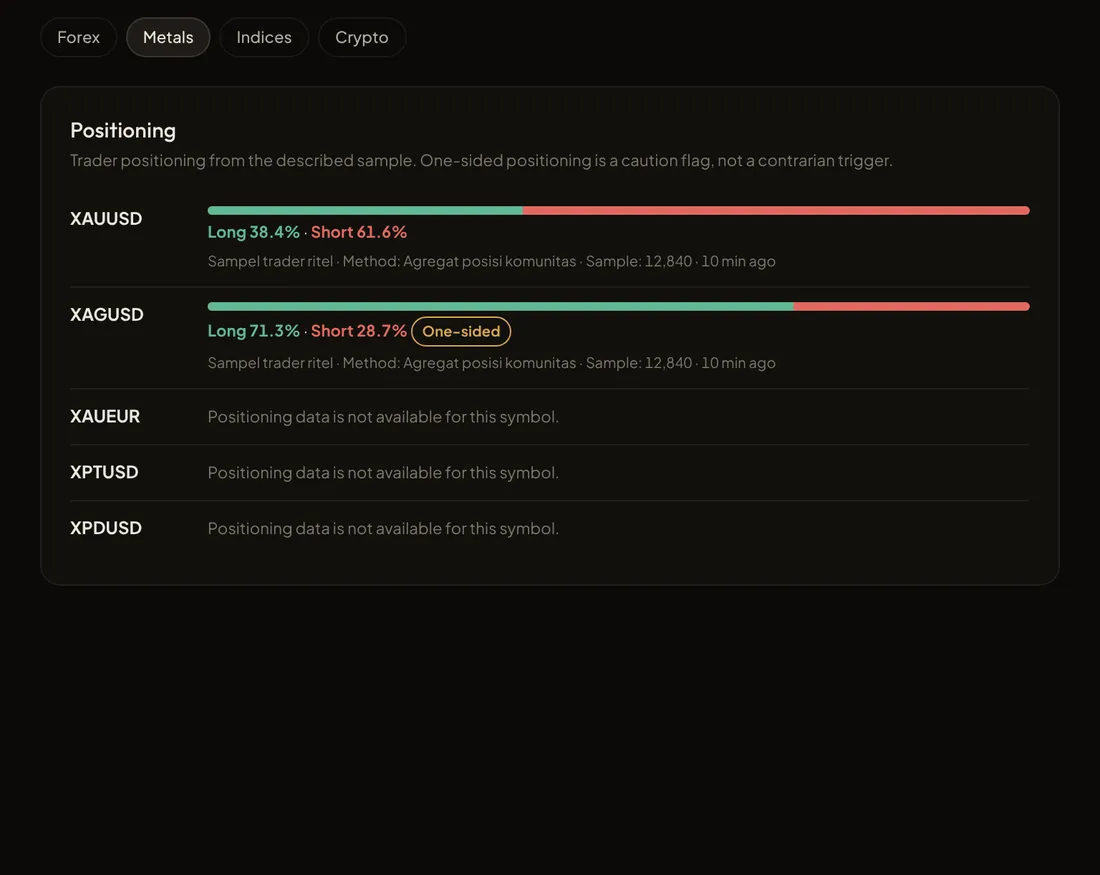
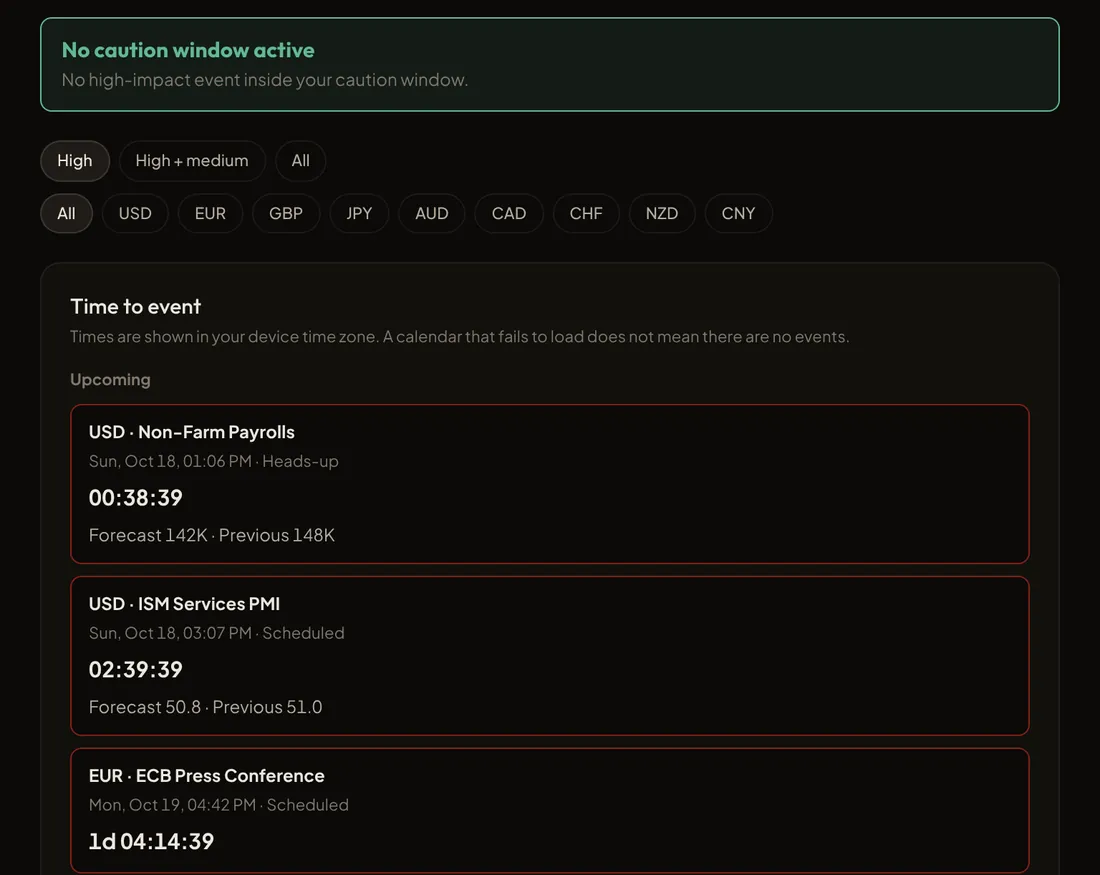
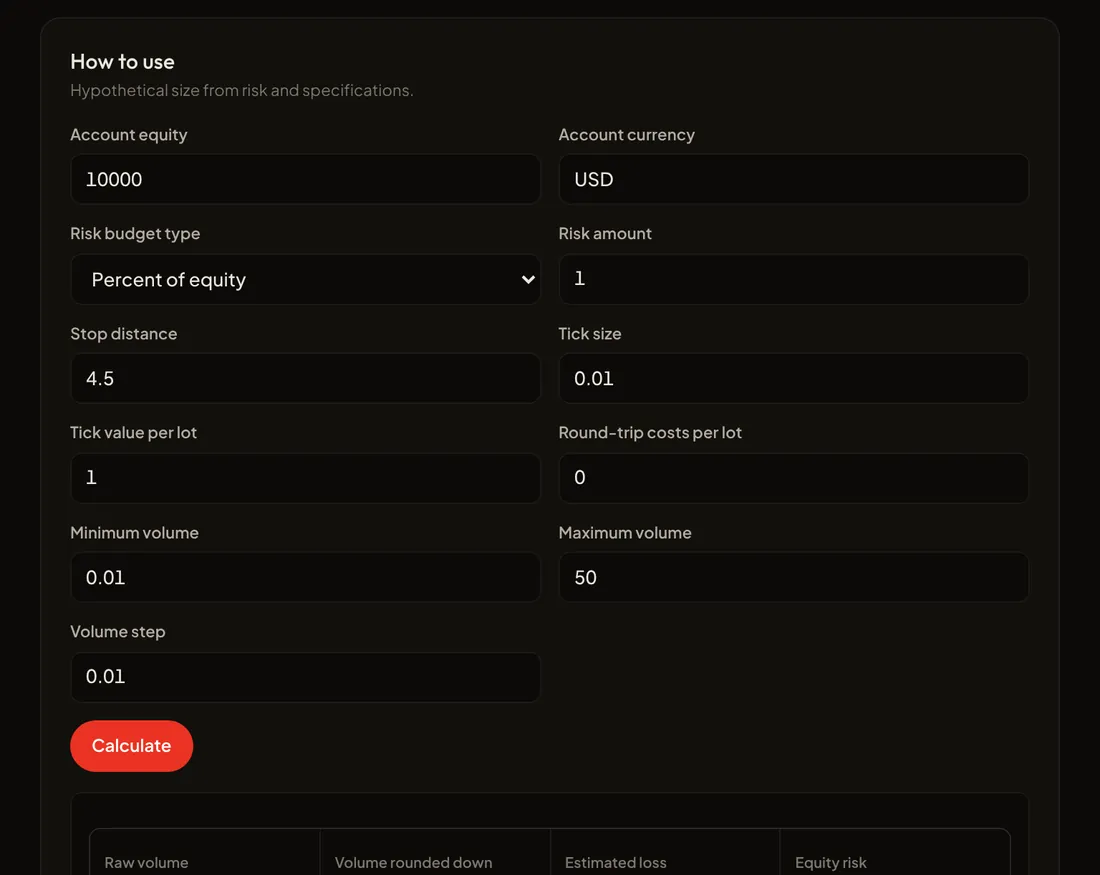
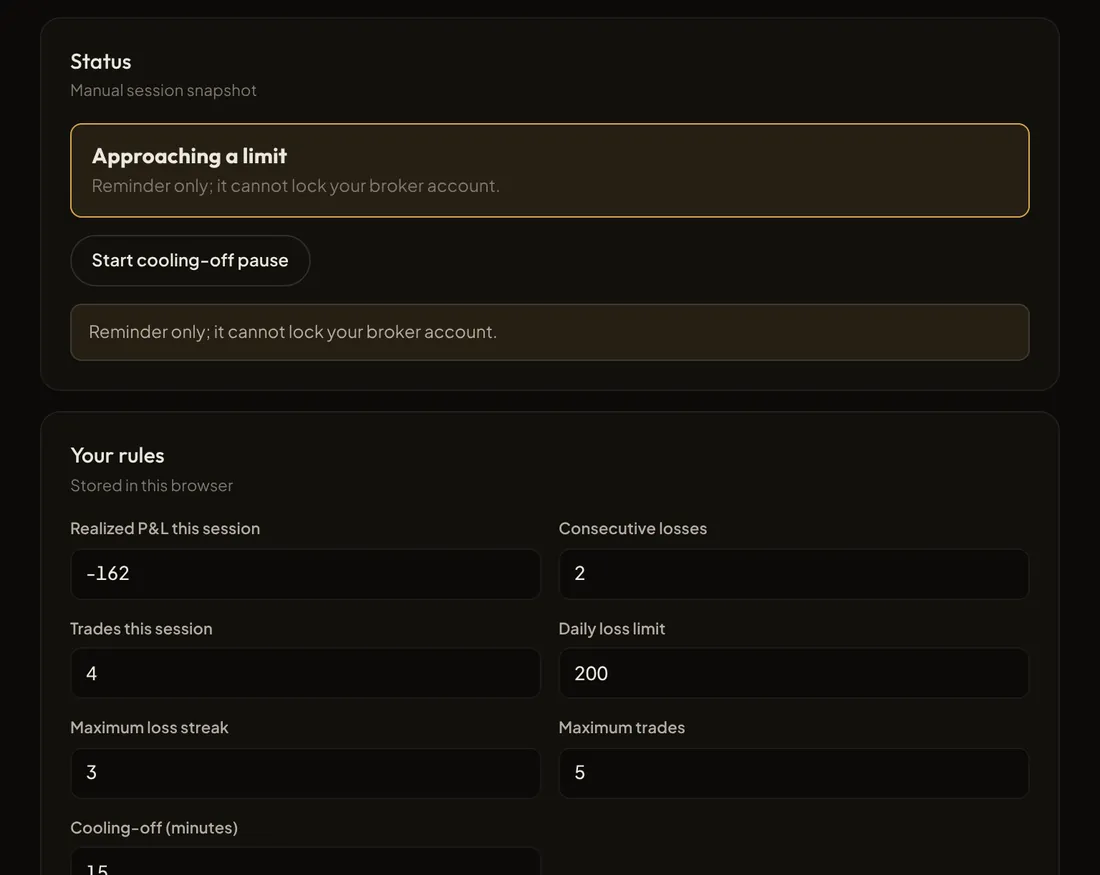
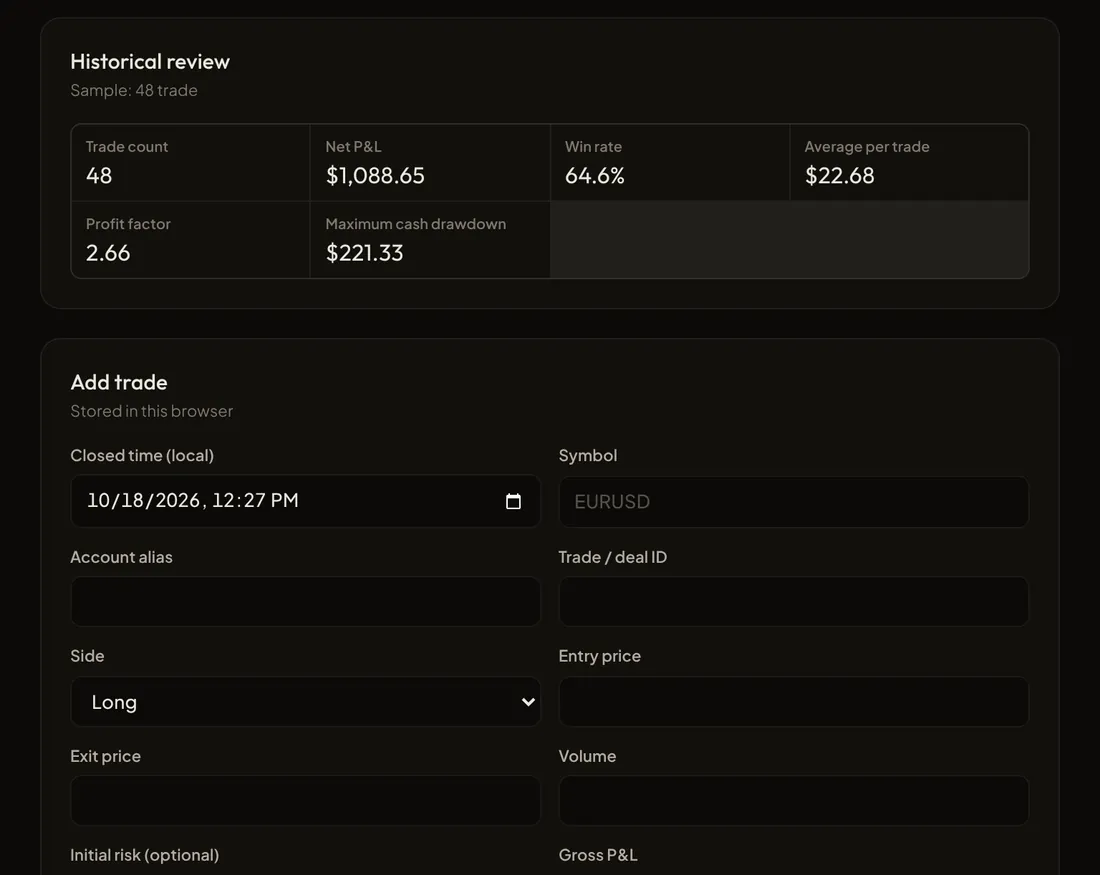
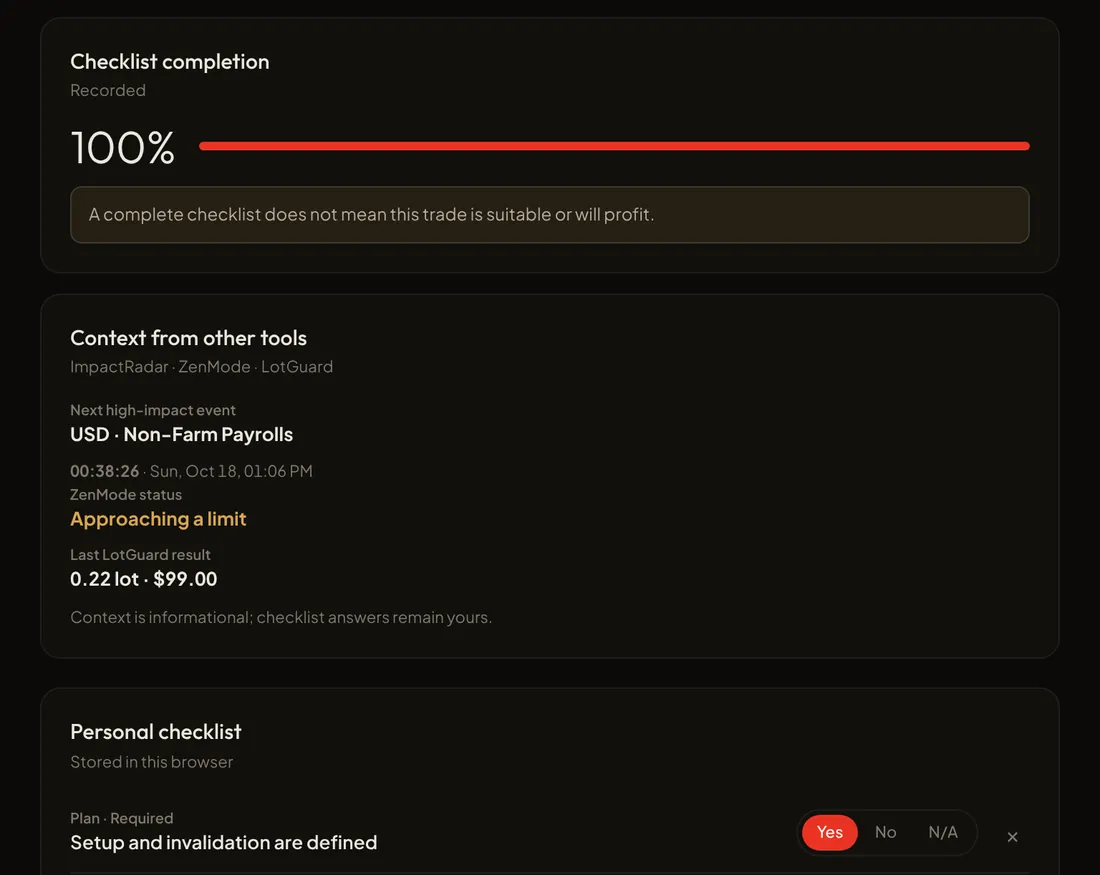
真实的 Nexus Vizion 截图,填充的是示例数据。图中数字不代表当前市场状况,也不是信号。
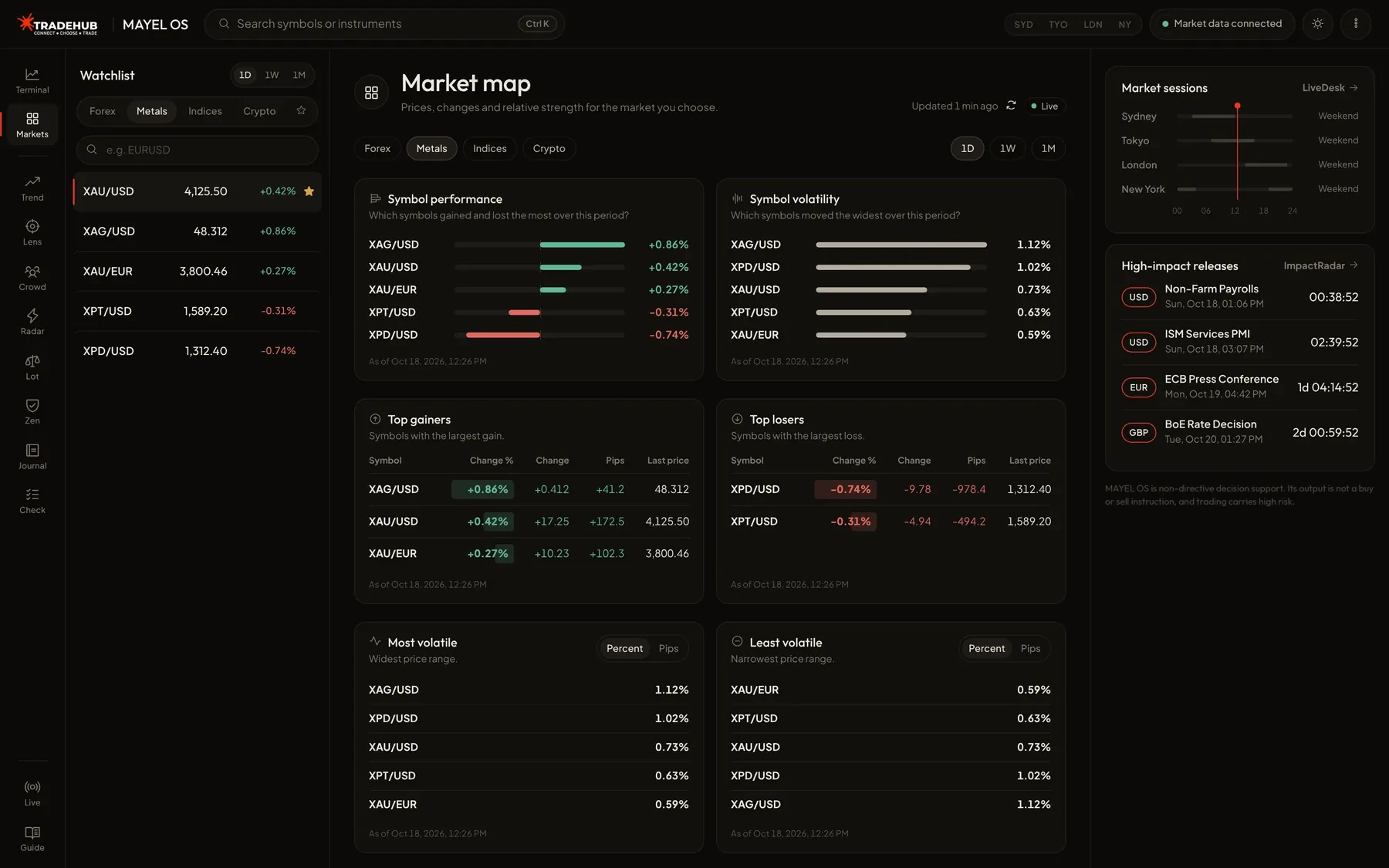
八款工具
发现
找出值得关注的品种,分辨真实行情与陷阱。
3 款工具
- TrendBite
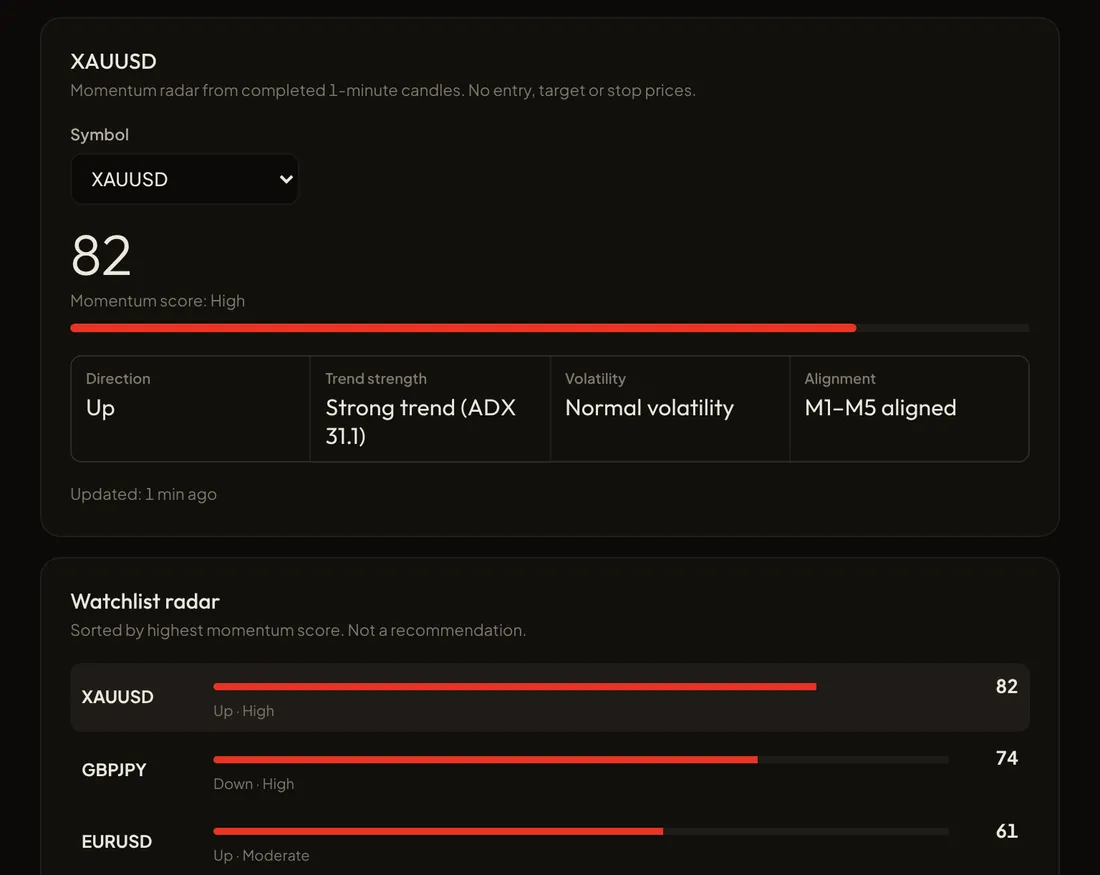
动量与趋势雷达,建立值得细看的品种自选列表。
- 同时评估多个时间周期上的趋势强度、动量和波动率匹配度。
- 结果是一份附带理由的排序自选列表,不含入场价、目标或止损。
在工作区中打开 · 数据状态在工作区内显示。
- MarketLens
价格结构验证,用来区分真实突破与假突破。
- 双向情景地图,包含条件式入场区间及其失效位。
- 不是买入或卖出指令。高影响新闻窗口期间会暂停分析。
在工作区中打开 · 数据状态在工作区内显示。
- CrowdPulse
来自授权数据源的散户持仓与情绪背景。
- 把严重一边倒的持仓标记为需要关注的点,而不是逆向交易的触发条件。
- 每个数据源单独显示,并标注其观测时间。缺失的数据绝不会用 50:50 代替。
在工作区中打开 · 数据状态在工作区内显示。
防护
保护您的资金,避免遭遇经济数据发布的冲击和错误的仓位大小。
2 款工具
- ImpactRadar
高影响经济数据发布的监控工具,警戒窗口可自行设置。
- 每个事件的状态:已安排、临近、已发布、已更新、已延迟或已取消,均按您的本地时间显示。
- 当各数据源对发布时间说法不一时,精确倒计时会暂停,直到问题解决。日历加载失败时,绝不会显示为“无事件”。
在工作区中打开 · 数据状态在工作区内显示。
- LotGuard
根据您选择的风险预算和止损距离计算仓位大小的计算器。如需在工作区之外快速计算,请使用交易计算器。
- 采用品种的合约规格。手数始终向下取整,绝不会悄悄上调到最小手数。
- 仅为假设性计算:它不会发送任何订单,也不判断某笔交易是否值得做。
在工作区中打开 · 数据状态在工作区内显示。
管控
帮助您遵守为自己设定的交易时段和亏损规则。
1 款工具
- ZenMode
根据您设定的交易时段、单日亏损、连续亏损和交易笔数规则生成的纪律提醒。
- 达到限制时会提醒您并建议暂停。手动暂停绝不会被每日重置解除。
- 它不会平仓,也不会锁定您的经纪商账户。如果日志数据不完整,状态会显示“无法核实”,而不是“安全”。
在工作区中打开 · 数据状态在工作区内显示。
评估
把您的交易历史变成客观评估。
2 款工具
- PipPrint
基于您记录或导入的交易,生成交易日志与绩效评估。
- 胜率、期望值、盈利因子和回撤,始终附带样本数量与统计周期。
- 修正内容会保存为新的修订版本,历史记录绝不删除。
在工作区中打开 · 数据状态在工作区内显示。
- TradeMind
自建的交易前检查清单,用来对照交易计划检验每一笔交易。
- 关联 LotGuard、ImpactRadar 和 ZenMode 的背景信息,并标注各自的数据时间。
- 检查清单 100% 完成只代表项目已全部确认,并不代表这笔交易安全或一定盈利。
在工作区中打开 · 数据状态在工作区内显示。
Nexus Vizion 如何运作
适用于全部八个工具的三项原则。
- 先看数据,再下结论
每个结果都附带来源、时间和数据质量。数据延迟、相互矛盾或不完整时会明确标示,而不是隐藏。
- 宁可沉默,也不猜测
当关键数据不适合使用时,工具会暂不给出结论。缺失的数值绝不会用猜测填补,也不会被当作中性处理。
- 决定权在您
Nexus Vizion 不下单、不持有资金,也不会把分析变成操作指令。是否执行,始终由您决定。
每个结果的状态
| OK | 所有必需数据均已通过检查。 |
|---|---|
| 部分可用 | 部分辅助数据暂不可用。系统会清楚说明限制,并省略受影响的字段。 |
| Abstain | 关键数据不适合使用,因此不会将任何结论显示为有效。 |
Nexus Vizion 的工具逻辑运行在 TradeHub 的系统内,而不是在本页面上。本页面仅概括说明其运作方式。没有任何软件能消除市场风险。Nexus Vizion 的作用是减少操作失误,帮助您遵守自己设定的限额。
产品边界
让您清楚了解 Nexus Vizion 能做什么、不能做什么。
Nexus Vizion 是
- 一款手动操作、不给出指令的决策辅助工具。
- 一个产品内含八个地位平等的工具。
- 一个数据说明器:来源、时间和局限性始终清晰可见。
Nexus Vizion 不是
- 信号服务或买卖推荐。经过筛选的信号在独立的服务 Nexus Signal 中提供。
- 自动执行或资金管理。您的资金始终留在您的经纪商处。
- CopyTrade Hub 或 Live Trade。这两项都是独立的服务。
工具地图:在 Trade Academy 手动练习
每个工具在 Trade Academy 中都有对应的免费手动练习版本。如需在工作区之外快速查看,日历、TradingView 图表和热力图都在 Trading Tools 中。
准备好使用 Nexus Vizion 了吗?打开 Nexus Vizion Workspace,从您最需要的工具开始。
常见问题
关于 Nexus Vizion。
Nexus Vizion 会给出买入或卖出信号吗?
不会。Nexus Vizion 不给出操作指令:各工具读取数据,并呈现背景、情景、计算结果和提醒。任何输出都不是买入或卖出指令,是否执行始终由您决定。
Nexus Vizion 会替我下单吗?
不会。Nexus Vizion 专为手动(自己动手)的交易方式而设计。它不会下单、平仓、锁定您的经纪商账户或持有资金。您的资金始终留在您的经纪商处。
为什么有时某个工具没有显示结果?
因为 Nexus Vizion 宁可沉默也不猜测。当关键数据延迟、各来源之间相互冲突或不完整时,工具会显示“弃权”并说明原因。部分可用的结果会清楚标注其局限。
Nexus Vizion 能消除亏损风险吗?
不能。没有任何软件能消除市场风险。Nexus Vizion 帮助您减少操作失误,并帮助您遵守自己设定的风险限额。
它与 CopyTrade Hub 和 Live Trade 有何不同?
CopyTrade Hub 是独立的跟单交易服务,而 Circus Capital 的 Live Trade 是由真人交易者进行的实盘交易。两者都不属于 Nexus Vizion 的八个工具。
Nexus Vizion 的市场数据来自哪里?
市场数据(价格、K 线、经济日历、情绪)由 TradeHub 团队通过 Nexus Vizion 准备:采集、检查时效,再送达 Workspace,开箱即用。您无需连接任何数据源。每个结果都会显示其状态(实时、延迟、休市或不可用)。
Market Clock 现在在哪里?
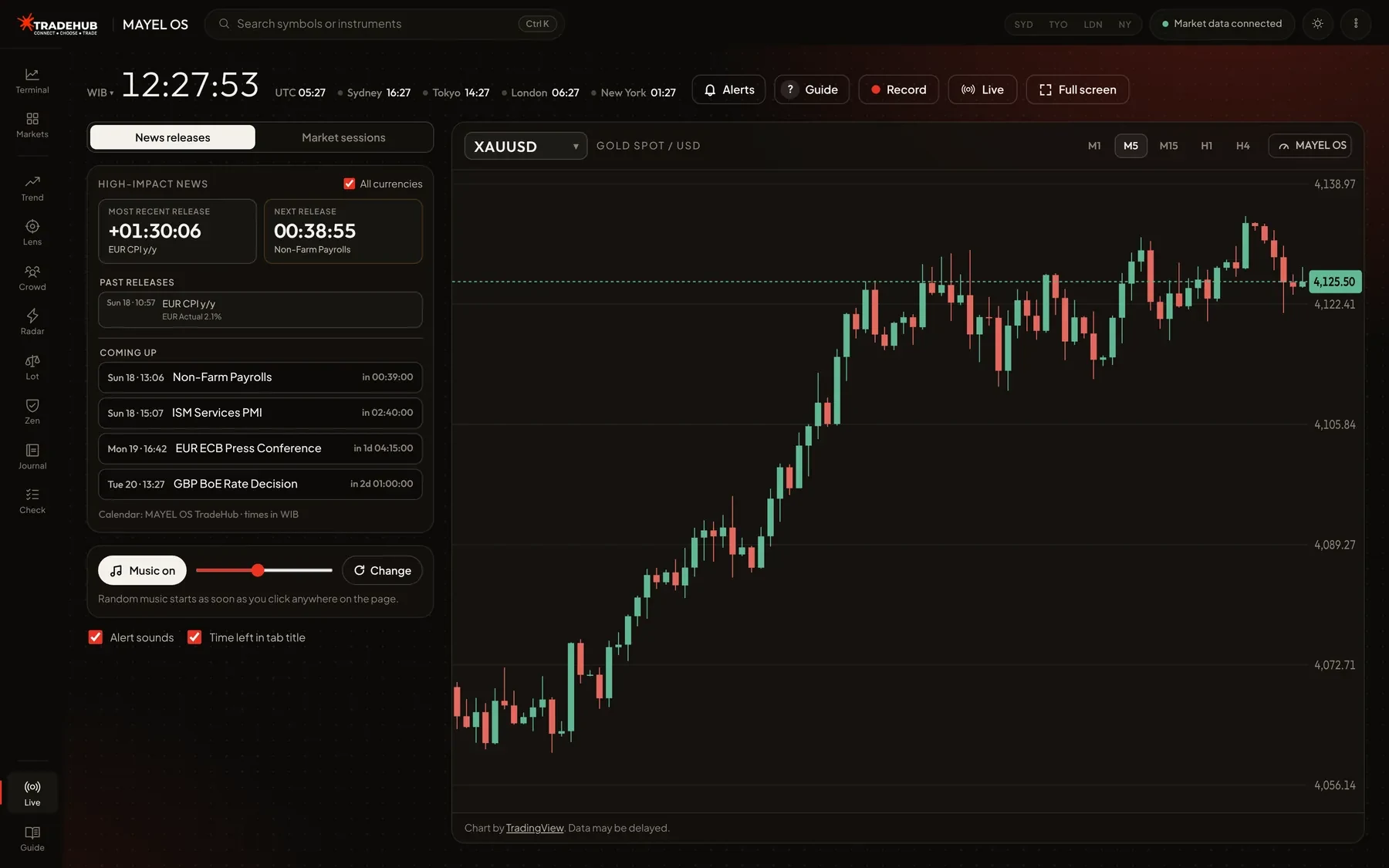
Market Clock 现已并入 Nexus Vizion Workspace 中的 LiveDesk:包含大时钟、新闻发布与交易时段倒计时、图表、MarketLens 面板、背景音乐、屏幕录制和 TikTok 直播框。LiveDesk 专为实时交易打造,例如在直播时使用。独立的 Market Clock 页面已停用,其旧地址会跳转到 LiveDesk。
如何使用 Nexus Vizion?
点击本页顶部的“打开 Nexus Vizion Workspace”即可,无需登录。LotGuard 和 PipPrint 等工具可立即接收您的输入,而使用实时数据源的工具会显示其数据状态。
什么时候可以使用?
现在就可以。Nexus Vizion 已正式上线,无需登录即可免费使用。每个工具仍会显示其数据状态(实时、延迟、休市)。
Follow TradeHub
Official channels, free and open. Connect Hub
 LiveDesk
Shown on this screen and, if allowed, as desktop notifications even when the tab is in the background.
Every second, news or session.
A countdown to the next release or session open and close, a count-up after it, with your chosen market always in view.
Loading news schedule…
Key releases this week
Loading release schedule...
Calendar: Nexus Vizion TradeHub. Times follow your device time zone.
Times follow your device time zone (). Music plays at random from Kevin MacLeod’s free library (incompetech.com, CC BY 4.0). Settings are saved in this browser only.
Every feature on this page, short and practical. Press ? any time to open this guide.
Quick start
- Choose the countdown source: News releases (the nearest high-impact release, straight from the calendar) or Market sessions for trading outside news hours.
- In Market sessions, the board counts down to the next session open or close (Sydney, Tokyo, London, New York) and the list shows which sessions are open. Session hours follow each city's daylight saving; the market is closed at the weekend.
- Times follow your laptop's time zone. To change it, click the zone label (e.g. WIB ▾) next to the main clock and pick another; choose Auto to go back to the laptop zone.
- Press Full screen (or F) to show only this tool.
Countdown board
- The board colour follows the ImpactRadar windows: amber for heads-up (≤60 min), red when near (≤15 min), blinking in the final minute.
- After the release it counts up: amber during the caution window (15 min), then green.
- Candle close under the board shows time left on the M1 and chart-timeframe candles, handy for waiting for the first post-news candle to close.
Chart and instruments
- Switch instruments from the menu at the top left of the chart (XAUUSD, XAGUSD, EURUSD, GBPUSD, USDJPY, DXY, US30, NAS100, BTCUSD).
- Change timeframe with M1 to H4. The gauge and candle timer follow it.
- MarketLens and TrendBite always analyse XAUUSD, because the price source is gold only.
Nexus Vizion panel
- All instruments live in the Nexus Vizion panel: open/close it with the Nexus Vizion button (or A). Click the instrument name at the top left of the panel to switch instruments and see each one's status.
- MarketLens · Auto: Nexus Vizion MarketLens bias gauge, spot price, upper/middle/lower levels and written analysis that refreshes automatically (see the “Updated” line, ↻ to refresh).
- The MarketLens news filter is on by default: from 15 minutes before to 15 minutes after high-impact news (following ImpactRadar), analysis is held (ABSTAIN) and the Manual structure checks are locked. Prices are still recorded.
- Entry zones & invalidation: MarketLens writes two conditional scenarios. The up scenario only applies if a candle closes above the Upper level: a retest zone just above it, invalid if price falls back below the invalidation point. The down scenario is the mirror. Not a buy or sell signal.
- Turn the filter off with Turn off (click twice to confirm; hover the filter line for the full explanation). While it is off, an amber warning box shows, turning red and blinking during a news window. Click Turn on to switch it back.
- MarketLens · Manual: write the up, down and invalidation levels before the release (or copy them from Auto), then tick the 4 structure checks after the candle closes. 4/4 = valid break; fewer = watch for a fakeout.
- TrendBite: XAUUSD momentum score, active after 200 M1 candles (~3.3 hours with the page open).
- ImpactRadar: event state and the next high-impact releases. Set the heads-up, near and caution minutes here; the left board follows them.
- LotGuard: enter equity, risk (% or $) and stop distance. Lots round down; below the minimum lot no size is shown.
- ZenMode: set a daily loss limit, losing streak and max trades. Status comes from the PipPrint journal; Manual pause holds until you click Resume.
- PipPrint: log every trade (side, lots, net P&L). Today/all metrics and CSV export are available.
- TradeMind: answer the checklist before entry. A “hard stop” item answered No sets the Blocked state. You can add your own items.
- CrowdPulse is not active yet because there is no licensed sentiment source.
TikTok Live
- Choose Live in the instrument menu, paste the TikTok live link and click Show.
- The video sits alongside the chart: ▣ changes its width, × closes it.
- If the live does not play inside the page, click ↗ (or L) to open TikTok right where that window is.
Alerts
- Click the bell Alerts button at the top right and switch it on. Allow desktop notifications if the browser asks, so alerts appear even when the tab is in the background.
- Choose what to be told about: high-impact news (5 minutes and 1 minute before, and at the release), market sessions opening/closing, XAU price levels you set in MarketLens · Manual, and MarketLens back on after a news window.
- Alerts also show as a small box at the bottom right of the page. Use Send a test to try it. The page must stay open (another tab is fine).
Music and sounds
- Calm music plays at random, back to back, after your first click on the page. Change (or N) plays another track, M toggles it.
- Alert sounds play at T-5 min, T-1 min, the last 10 seconds and at release.
- The screen is kept awake while a countdown is active.
Screen recording
- Press Record (or R) and choose a tab or screen. To capture sound, pick this tab and turn on audio sharing (Chrome).
- Press Stop: the video is saved to your Downloads folder, named after the news and time, as MP4 (H.264 + AAC, max 1920×1080, 30 fps) that plays straight away in QuickTime, Windows, on phones, or uploads to TikTok/YouTube.
- Works in full screen too. While the browser shows the recording prompt it leaves full screen; the page goes straight back, or shows a Back to full screen button if the browser needs one click.
Keyboard shortcuts
- F full screen · A analysis panel · M music · N next track · R record · L open live in a TikTok window · ? guide · Esc close menu/guide.
Data and limits
- Times follow your device time zone. Settings, journal and price data are stored in this browser only.
- MarketLens and TrendBite are computed on TradeHub's Nexus Vizion server; the page only sends price candles and shows the result, so it needs an internet connection.
- Spot price from the Nexus Vizion TradeHub feed (~30 s) may differ slightly from your broker. If the price is older than 3 minutes, analysis shows STALE_DATA and is not written.
- Auto schedule needs the TradeHub calendar server; if unavailable, use Market sessions mode. The news filter reads this schedule too, so high-impact news is still caught in Market sessions mode.
- Everything on this page is a decision aid, not a buy or sell signal. Forex and CFD trading is high risk.