

ตราสารแปดตัวเพื่อตรวจจับ ปกป้อง ควบคุม และประเมินการตัดสินใจเทรดของคุณ Nexus Vizion อ่านข้อมูล คุณเป็นคนตัดสินใจ เปิด Workspace ของ Nexus Vizion เพื่อใช้เครื่องคำนวณ บันทึกการเทรด เช็กลิสต์ และเครื่องมือที่เชื่อมต่อกัน
- Status
- พร้อมใช้งาน ฟรี
- เปิดตัว
- ตุลาคม 2026 เวอร์ชัน 1.0
- ตราสาร
- 8 ตัวเท่าเทียมกัน ใน 4 ขั้น
- Mode
- แมนนวล: ไม่ส่งคำสั่งเด็ดขาด
- ชื่อ
- Network for Exchange Intelligence & Unified Strategy
- เงินทุนของลูกค้า
- อยู่กับโบรกเกอร์ ไม่ใช่ TradeHub
Nexus Vizion เปิดตัวแล้วและใช้ได้ฟรีโดยไม่ต้องเข้าสู่ระบบ ตราสารที่ต้องใช้ข้อมูลสดจะแสดงสถานะ Data Hub: Live, ล่าช้า หรือตลาดปิด Nexus Vizion เป็นเครื่องมือช่วยวิเคราะห์และสร้างวินัยแบบไม่ชี้นำ ไม่ใช่บริการสัญญาณและไม่ใช่คำแนะนำการลงทุน TradeHub ไม่ได้บริหารเงินของลูกค้า การเทรดมีความเสี่ยงสูง
ทำไมเราสร้างขึ้นมา
เทรดเดอร์ส่วนใหญ่ล้มเหลวเพราะความล้าจากการตัดสินใจและการทำผิดกฎของตัวเอง ไม่ใช่เพราะขาดมุมมอง
วิธีแบบเดิม
- หน้าจอ ปฏิทิน และกราฟมากเกินไปจนตัดสินใจได้ไม่ชัด
- ตัดสินใจตามความรู้สึก ถูก FOMO และราคาที่ขยับระยะสั้นชักนำได้ง่าย
- ขนาดล็อตตามความรู้สึก ขีดจำกัดการขาดทุนอยู่แค่ในหัว
แนวทางของ Nexus Vizion
- ตราสารแปดตัวที่เท่าเทียมกันในห้องควบคุมเดียว
- ทุกผลลัพธ์ระบุแหล่งข้อมูลและอายุของข้อมูล เมื่อข้อมูลไม่เหมาะจะใช้ ตราสารจะเงียบแทนที่จะเดา
- ขนาดโพซิชันจากการคำนวณ ขีดจำกัดการขาดทุนจากกฎที่คุณตั้งเอง
แผนผังระบบ: สี่ขั้น ตราสารแปดตัว
ขั้นต่างๆ มีไว้เพื่อจัดกลุ่มและนำทางเท่านั้น ตราสารทั้งแปดตัวเท่าเทียมกัน: ไม่ใช่ลำดับชั้น และไม่ใช่ลำดับที่คุณต้องทำตาม
- 01ตรวจจับ3 ตราสาร
- 02ป้องกัน2 ตราสาร
- 03ควบคุม1 ตราสาร
- 04ประเมิน2 ตราสาร
ชม Nexus Vizion
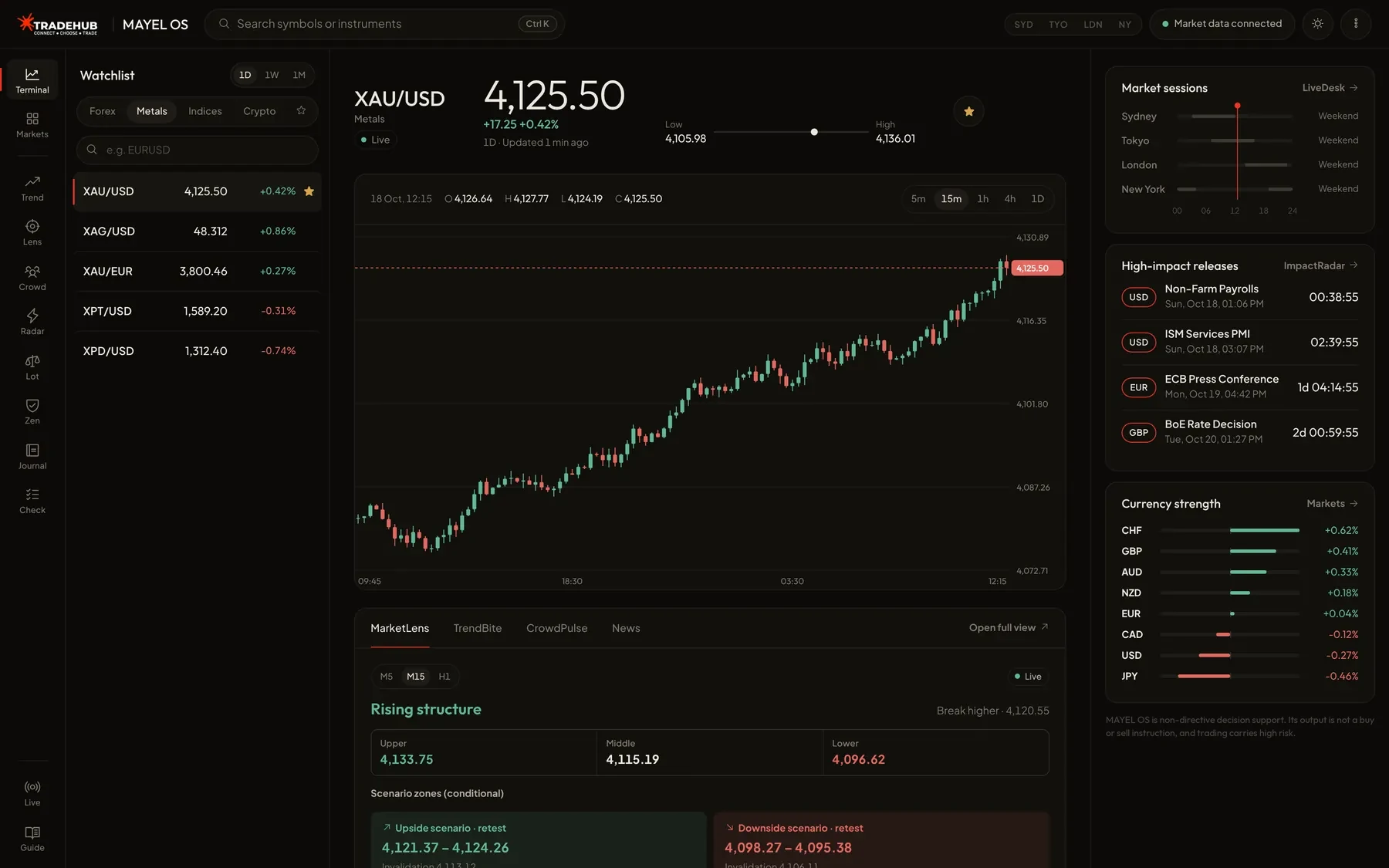
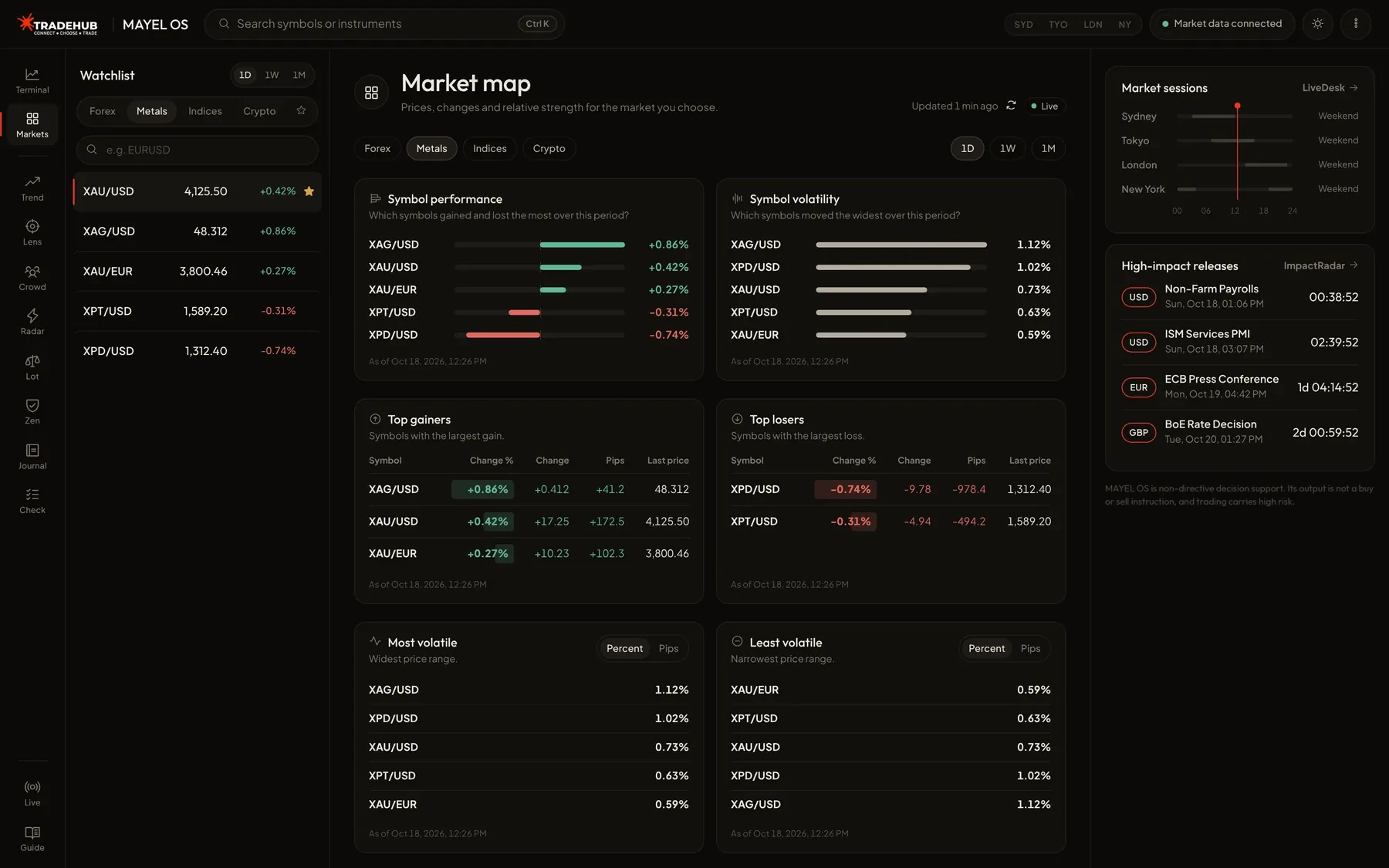
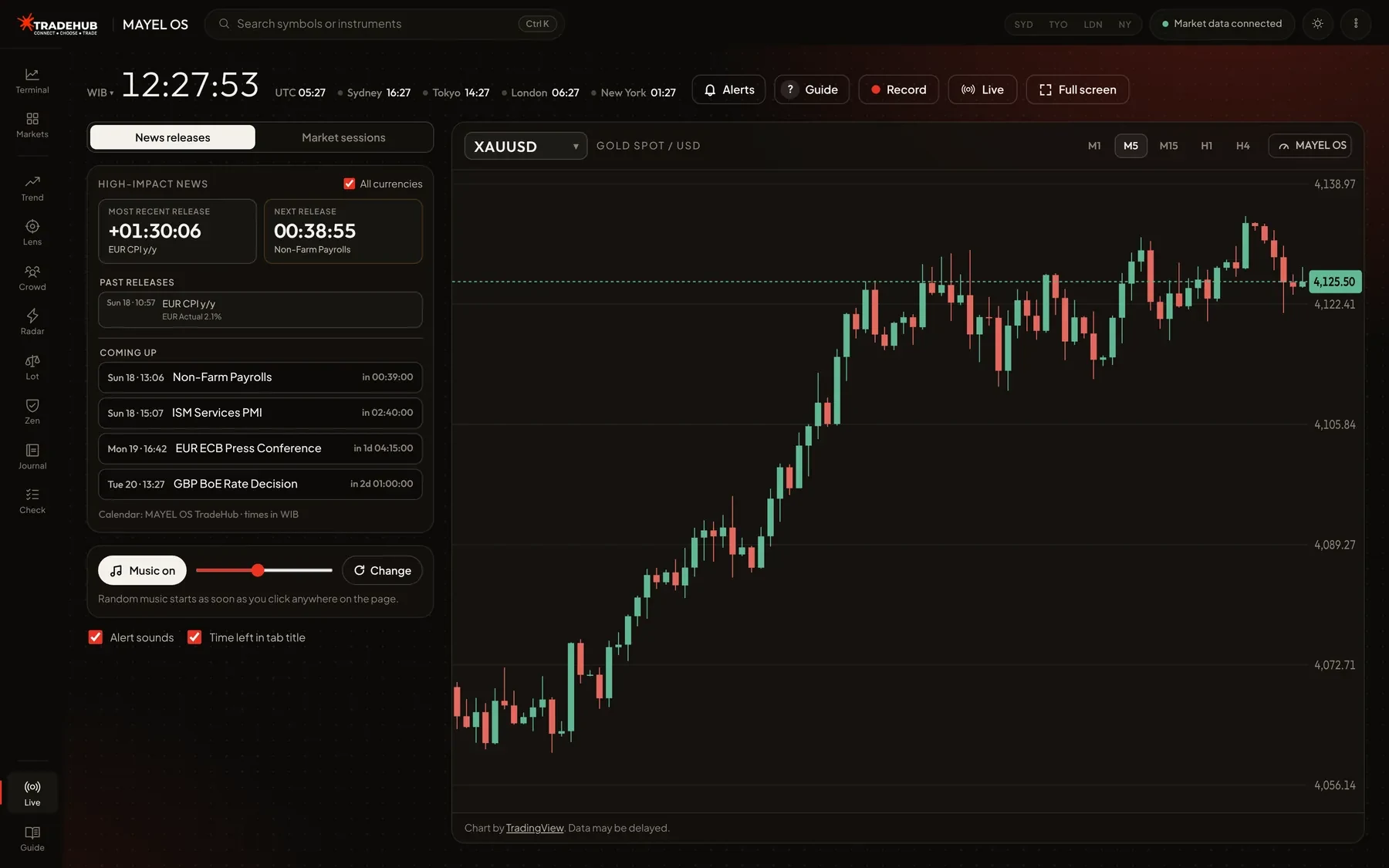
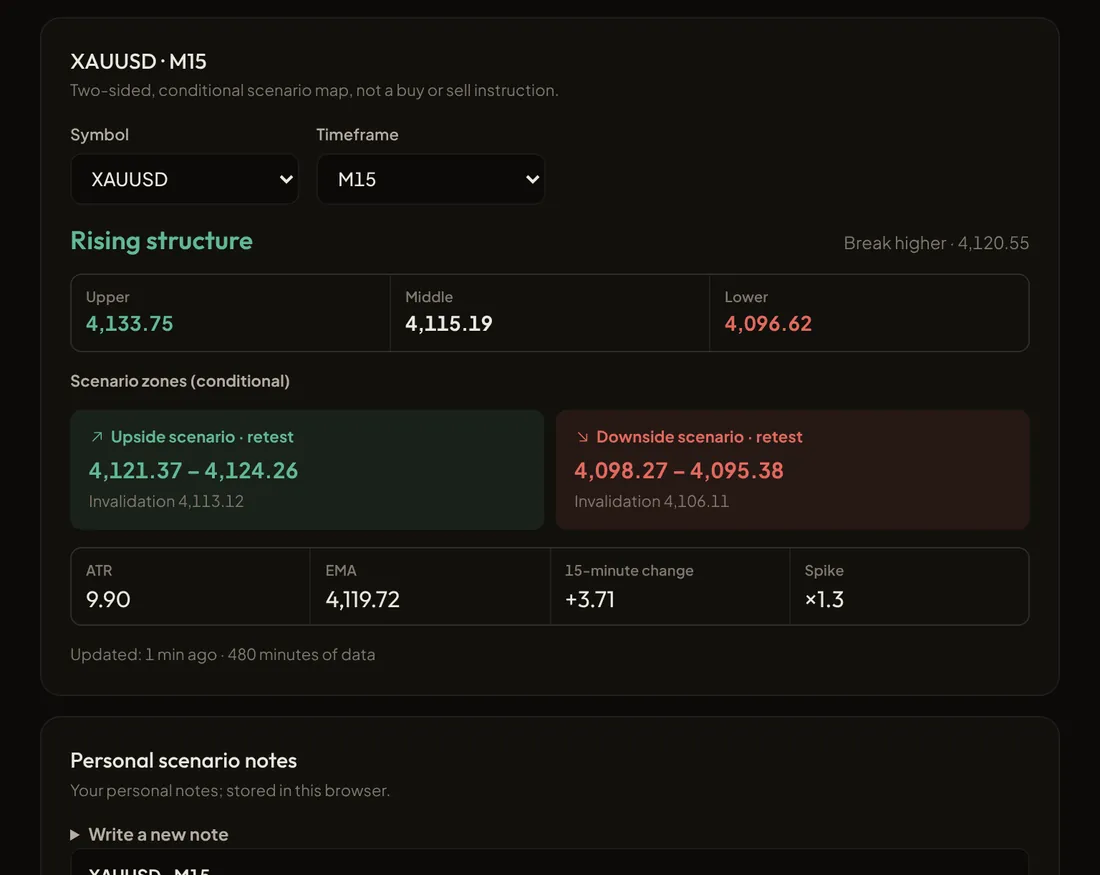
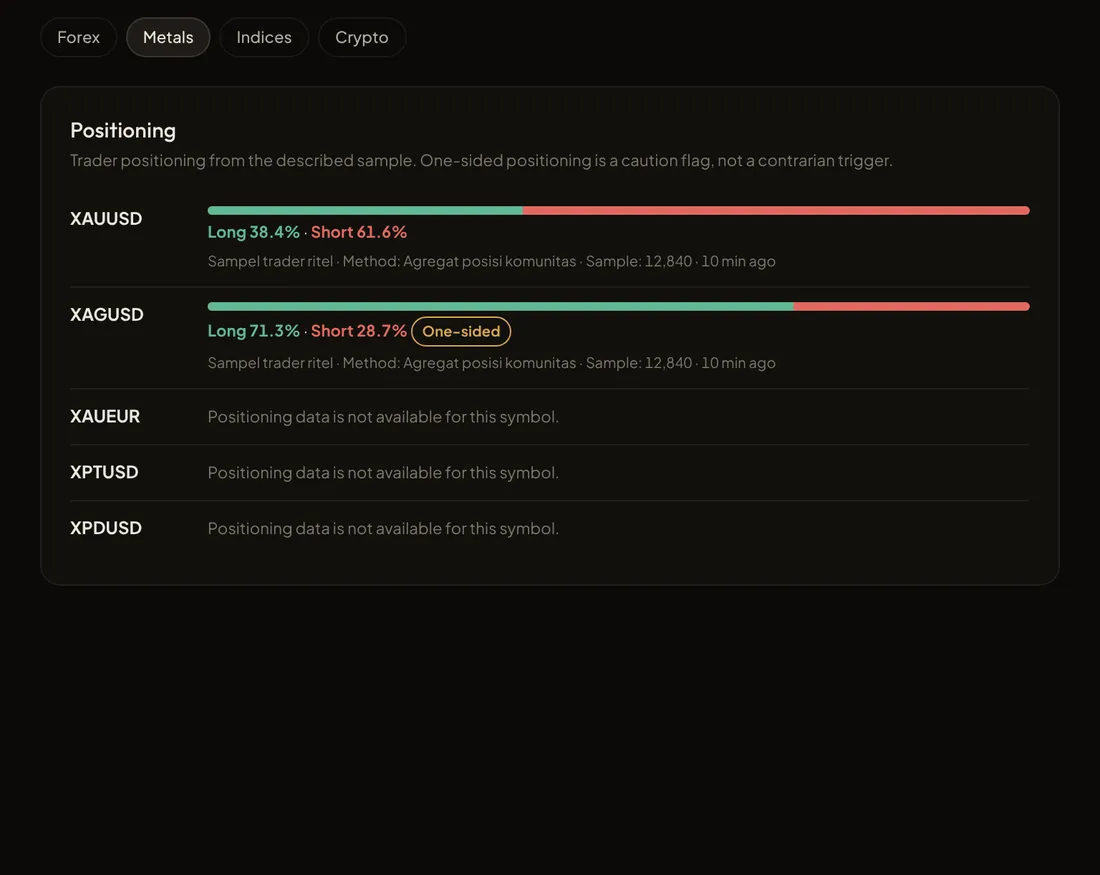
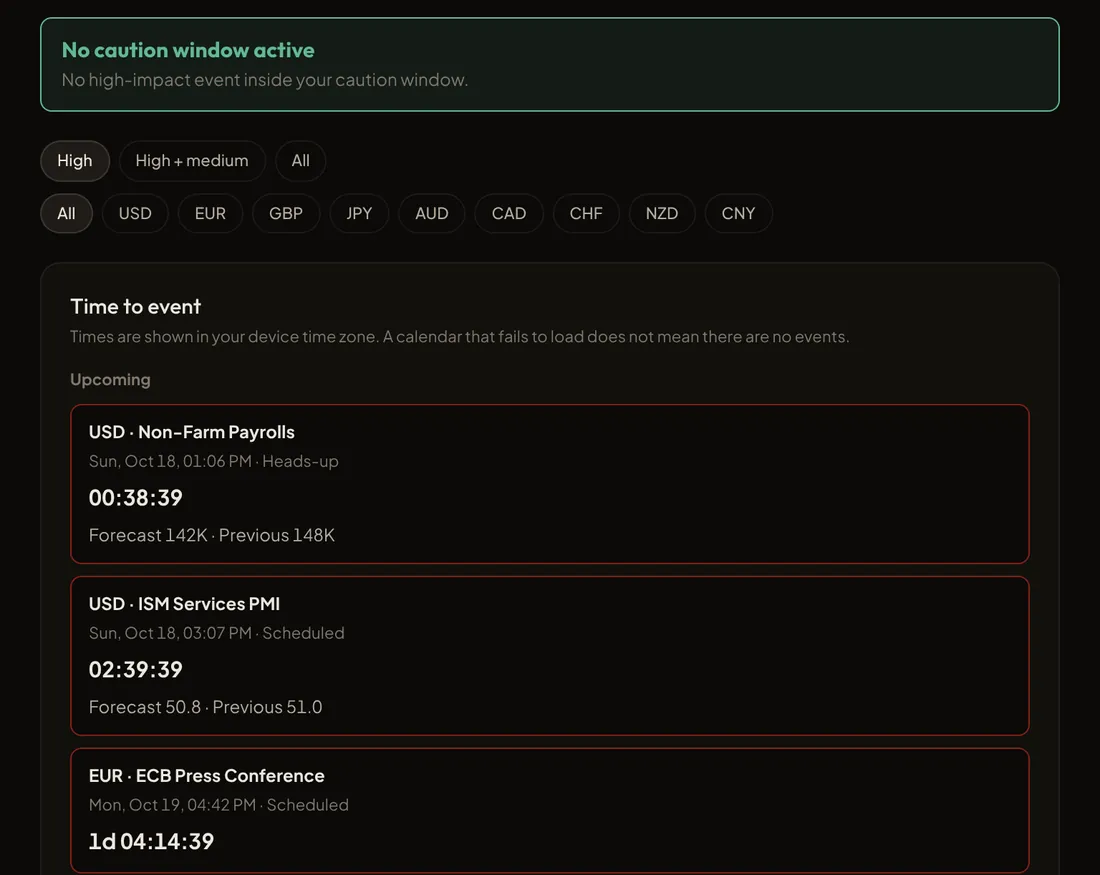
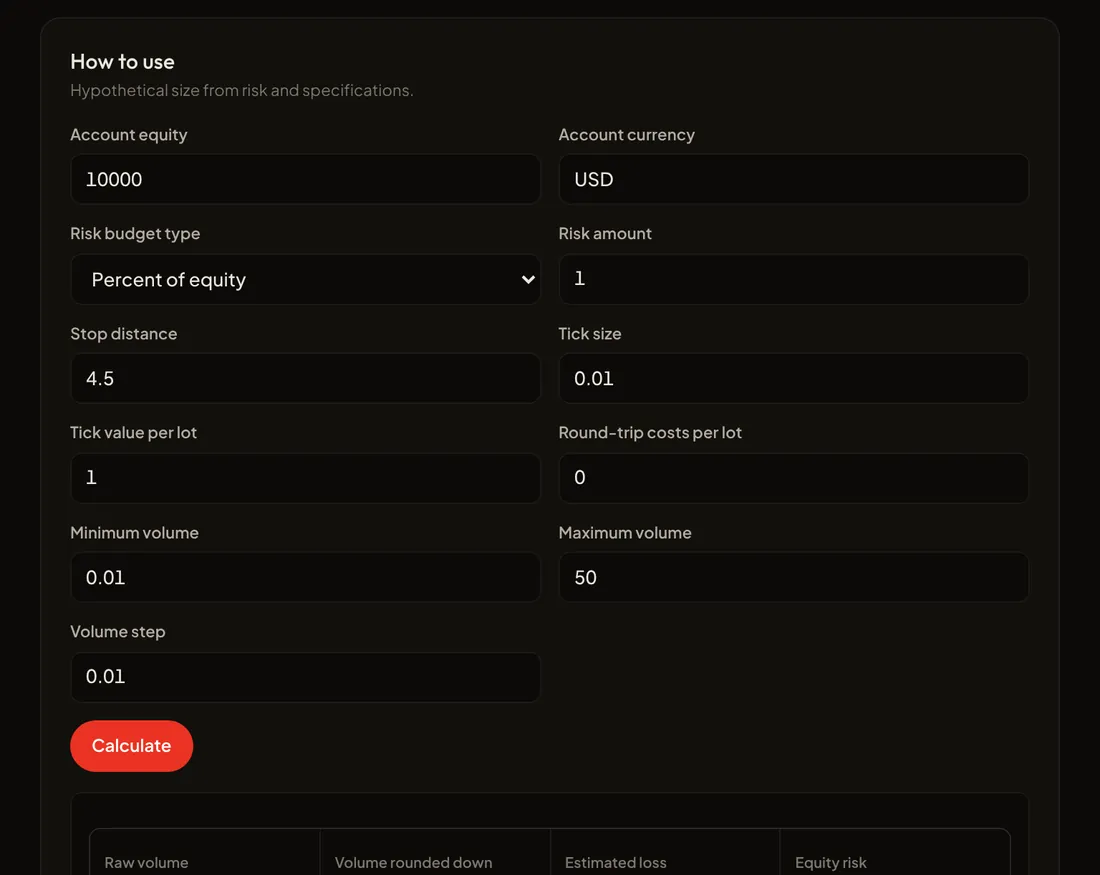
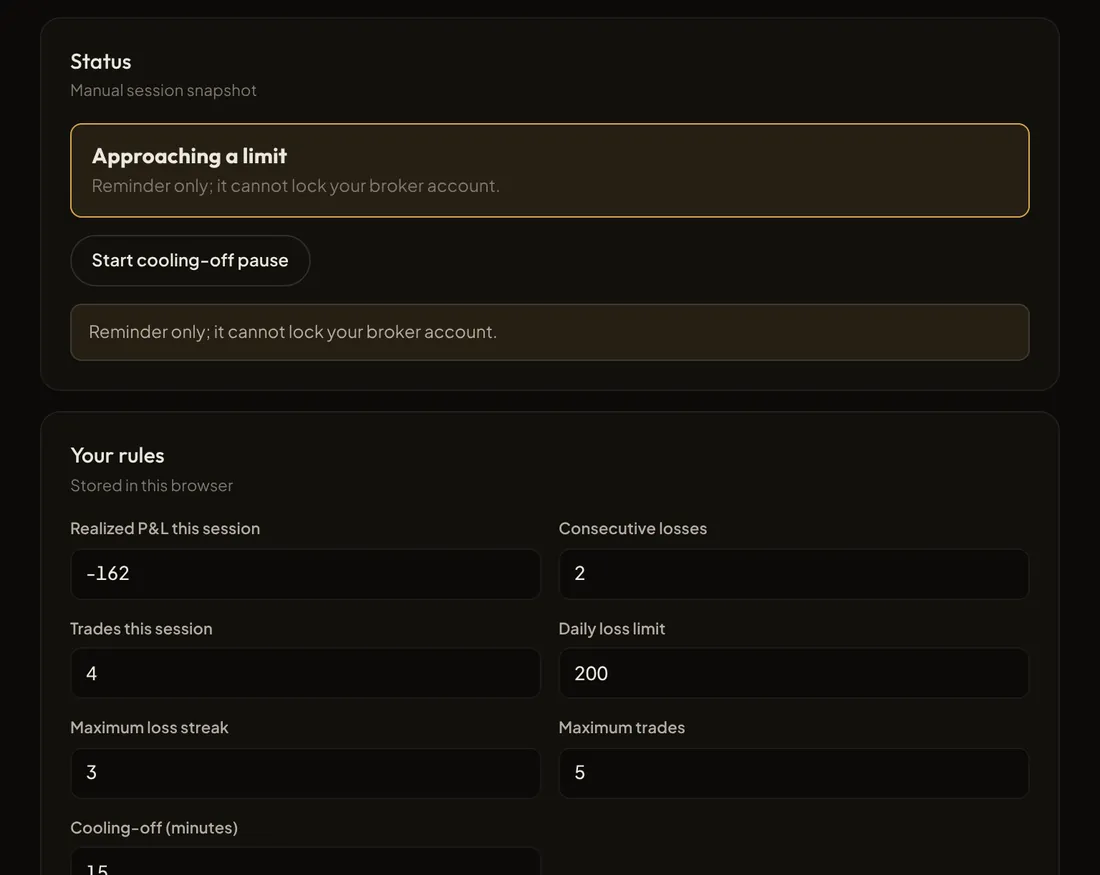
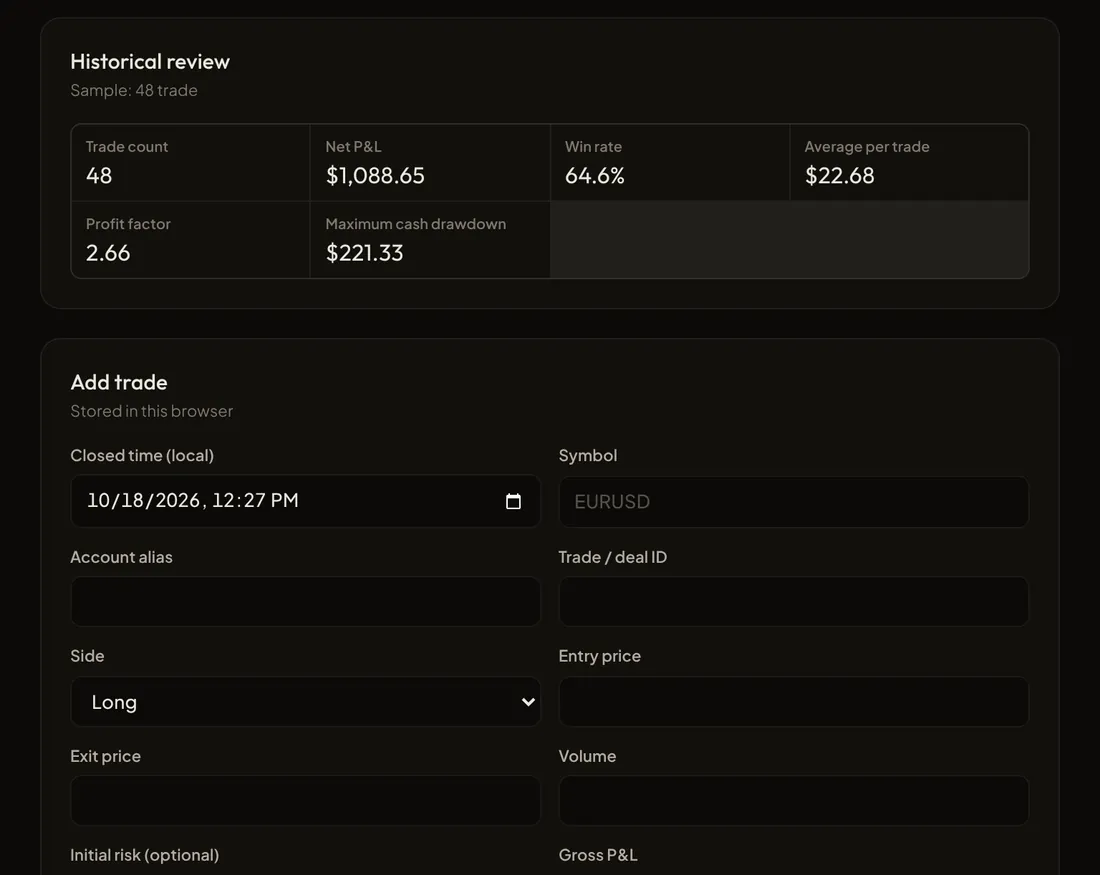
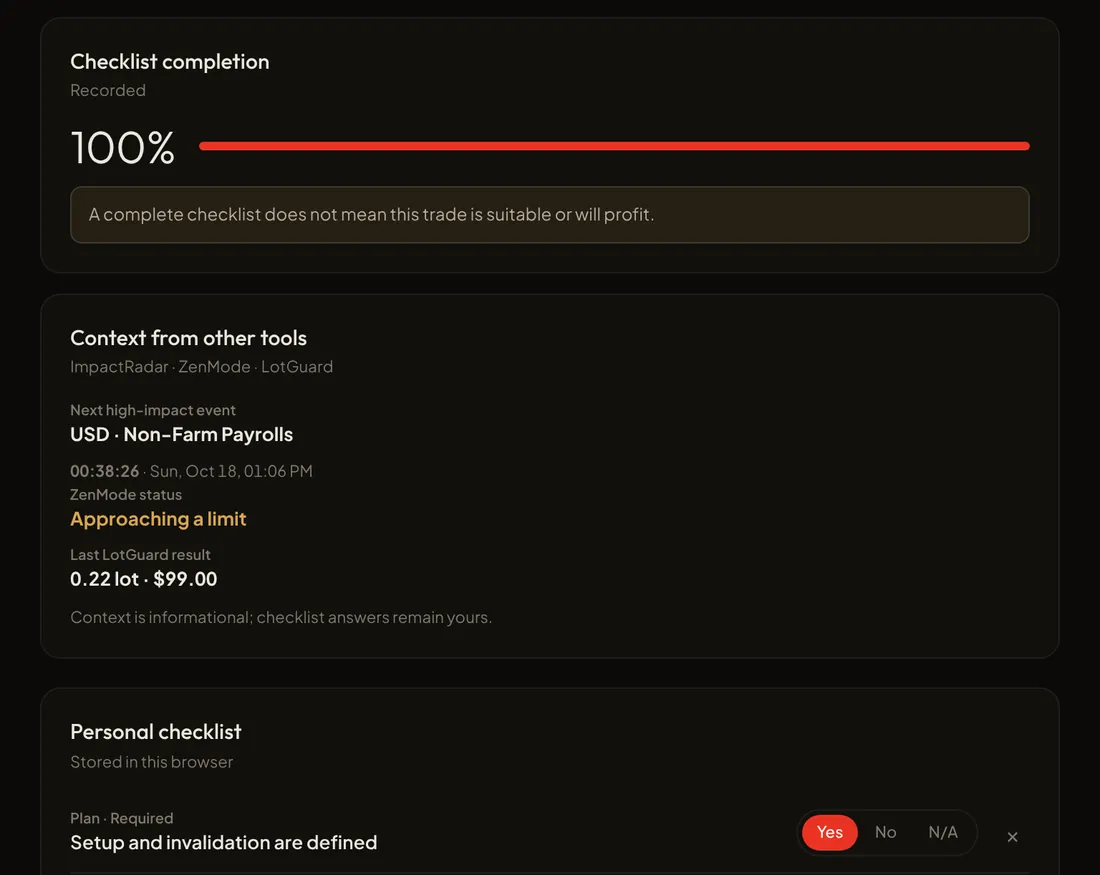
ภาพหน้าจอจริงของ Nexus Vizion ที่ใส่ข้อมูลตัวอย่าง ตัวเลขไม่ใช่สภาวะตลาดปัจจุบันและไม่ใช่สัญญาณ
ตราสารแปดตัว
ตรวจจับ
ค้นหาสัญลักษณ์ที่ควรพิจารณา และแยกการเคลื่อนไหวจริงออกจากกับดัก
3 ตราสาร
- TrendBite
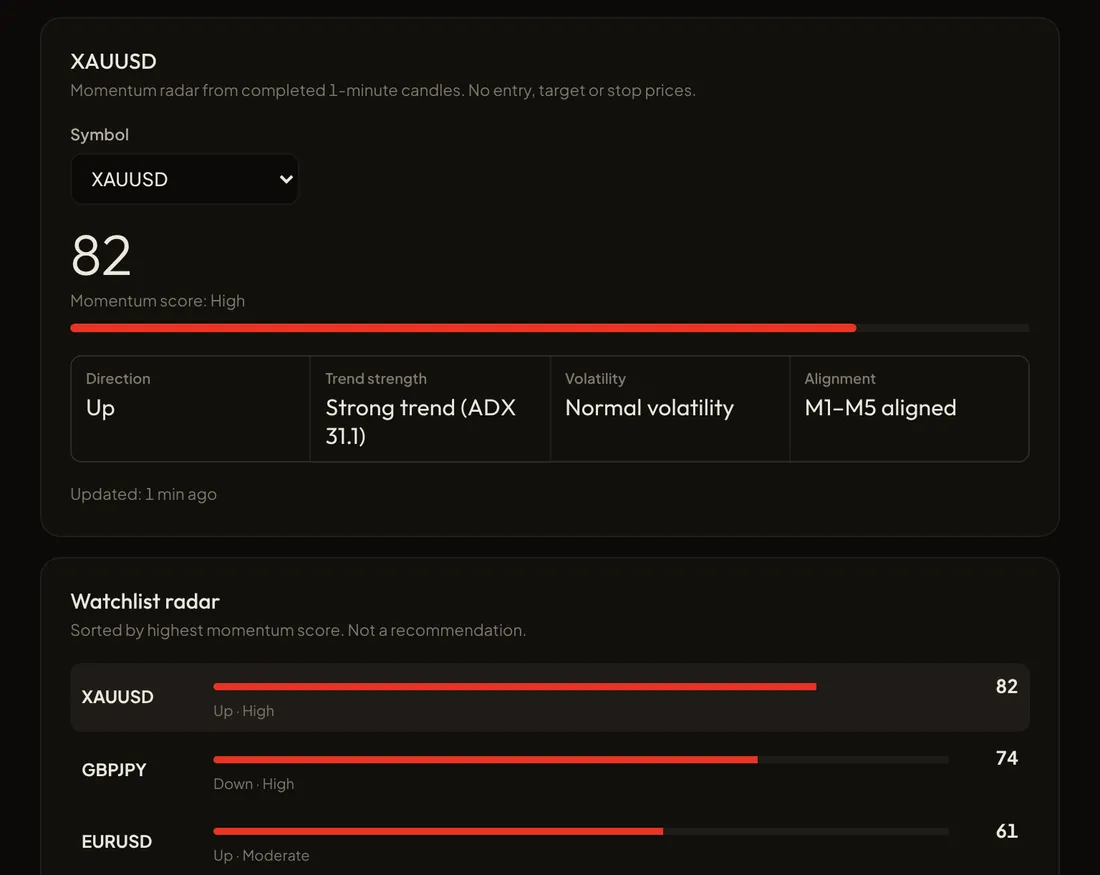
เรดาร์โมเมนตัมและเทรนด์ที่สร้าง watchlist ของสัญลักษณ์ที่ควรดูให้ละเอียดขึ้น
- ประเมินความแข็งแกร่งของเทรนด์ โมเมนตัม และความเหมาะสมของความผันผวนในหลายไทม์เฟรมพร้อมกัน
- ผลลัพธ์คือ watchlist ที่จัดอันดับพร้อมเหตุผล โดยไม่มีราคาเข้า เป้าหมาย หรือ stop
เปิดใน workspace · สถานะข้อมูลแสดงอยู่ที่นั่น
- MarketLens
ตรวจสอบโครงสร้างราคาเพื่อแยกเบรกจริงออกจาก fakeout
- แผนที่สถานการณ์สองทิศทาง พร้อมโซนเข้าแบบมีเงื่อนไขและระดับที่ทำให้สถานการณ์เป็นโมฆะ
- ไม่ใช่คำสั่งซื้อหรือขาย การวิเคราะห์จะถูกระงับในช่วงข่าวที่มีผลกระทบสูง
เปิดใน workspace · สถานะข้อมูลแสดงอยู่ที่นั่น
- CrowdPulse
บริบทสถานะและ sentiment ของรายย่อยจากแหล่งข้อมูลที่ได้รับอนุญาต
- ระบุสถานะที่เอียงไปฝั่งเดียวมากเป็นจุดที่ควรระวัง ไม่ใช่สัญญาณให้เทรดสวนทาง
- แต่ละแหล่งข้อมูลแสดงแยกกันพร้อมเวลาที่สังเกต ข้อมูลที่ขาดหายไม่เคยถูกแทนด้วย 50:50
เปิดใน workspace · สถานะข้อมูลแสดงอยู่ที่นั่น
ป้องกัน
ปกป้องเงินทุนของคุณจากแรงกระแทกของการประกาศข้อมูลเศรษฐกิจและขนาดโพซิชันที่ผิด
2 ตราสาร
- ImpactRadar
ตัวติดตามการประกาศข้อมูลเศรษฐกิจที่มีผลกระทบสูง พร้อมช่วงเฝ้าระวังที่คุณตั้งค่าได้
- สถานะของแต่ละเหตุการณ์: ตามกำหนด ใกล้ถึง ประกาศแล้ว อัปเดต เลื่อน หรือยกเลิก ตามเวลาท้องถิ่นของคุณ
- เมื่อแหล่งข้อมูลระบุเวลาประกาศไม่ตรงกัน การนับถอยหลังแบบละเอียดจะถูกระงับจนกว่าจะชัดเจน ปฏิทินที่โหลดไม่สำเร็จจะไม่ถูกแสดงว่า "ไม่มีเหตุการณ์"
เปิดใน workspace · สถานะข้อมูลแสดงอยู่ที่นั่น
- LotGuard
เครื่องคำนวณขนาดโพซิชันจากงบความเสี่ยงและระยะ stop ที่คุณเลือก หากต้องการคำนวณเร็วๆ นอก workspace ให้ใช้ เครื่องคำนวณการเทรด.
- ใช้สเปกสัญญาของตราสาร ขนาดจะปัดลงเสมอ และไม่เคยถูกเพิ่มขึ้นเป็นล็อตขั้นต่ำแบบเงียบๆ
- เป็นการคำนวณสมมติ: ไม่ส่งคำสั่ง และไม่ตัดสินว่าการเทรดนั้นคุ้มที่จะเข้าหรือไม่
เปิดใน workspace · สถานะข้อมูลแสดงอยู่ที่นั่น
ควบคุม
ช่วยให้คุณรักษากฎด้านเซสชันและการขาดทุนที่ตั้งไว้เอง
1 ตราสาร
- ZenMode
ตัวเตือนวินัยที่สร้างจากกฎเซสชัน การขาดทุนรายวัน การขาดทุนติดกัน และจำนวนการเทรดที่คุณตั้งไว้
- เตือนและแนะนำให้พักเมื่อถึงขีดจำกัด การพักที่คุณตั้งเองจะไม่ถูกยกเลิกโดยการรีเซ็ตรายวัน
- ไม่ปิดโพซิชันหรือล็อกบัญชีโบรกเกอร์ของคุณ หากข้อมูลในบันทึกการเทรดไม่ครบ สถานะจะเป็น "ตรวจสอบไม่ได้" ไม่ใช่ "ปลอดภัย"
เปิดใน workspace · สถานะข้อมูลแสดงอยู่ที่นั่น
ประเมิน
เปลี่ยนประวัติการเทรดของคุณให้เป็นการประเมินที่ตรงไปตรงมา
2 ตราสาร
- PipPrint
บันทึกการเทรดและการประเมินผลงานจากการเทรดที่คุณบันทึกหรือนำเข้า
- Win rate, expectancy, profit factor และ drawdown มาพร้อมขนาดตัวอย่างและช่วงเวลาเสมอ
- การแก้ไขจะถูกบันทึกเป็นฉบับปรับปรุงใหม่ ประวัติเดิมไม่เคยถูกลบ
เปิดใน workspace · สถานะข้อมูลแสดงอยู่ที่นั่น
- TradeMind
เช็กลิสต์ก่อนเทรดที่คุณสร้างเอง เพื่อตรวจการเทรดเทียบกับแผนของคุณ
- ดึงบริบทจาก LotGuard, ImpactRadar และ ZenMode มารวมกัน พร้อมเวลาของข้อมูลแต่ละตัว
- เช็กลิสต์ 100% หมายถึงครบถ้วน ไม่ได้หมายความว่าการเทรดนั้นปลอดภัยหรือชนะแน่นอน
เปิดใน workspace · สถานะข้อมูลแสดงอยู่ที่นั่น
Nexus Vizion ทำงานอย่างไร
หลักการสามข้อที่ใช้กับตราสารทั้งแปดตัว
- ข้อมูลมาก่อน แล้วจึงสรุป
ทุกผลลัพธ์ระบุแหล่งที่มา เวลา และคุณภาพของข้อมูล ข้อมูลที่ล่าช้า ขัดแย้ง หรือไม่ครบจะถูกแจ้งให้เห็น ไม่ถูกซ่อน
- เงียบดีกว่าเดา
เมื่อข้อมูลสำคัญไม่เหมาะจะใช้ ตราสารจะงดให้ข้อสรุป ตัวเลขที่ขาดหายไม่เคยถูกเติมด้วยการเดาหรือถูกถือว่าเป็นกลาง
- คุณเป็นคนตัดสินใจ
Nexus Vizion ไม่ส่งคำสั่ง ไม่ถือเงิน และไม่เคยเปลี่ยนบทวิเคราะห์ให้เป็นคำสั่ง การตัดสินใจส่งคำสั่งเป็นของคุณเสมอ
สถานะของทุกผลลัพธ์
| OK | ข้อมูลที่จำเป็นทั้งหมดผ่านการตรวจสอบแล้ว |
|---|---|
| บางส่วน | ข้อมูลประกอบบางส่วนไม่พร้อมใช้งาน มีการระบุข้อจำกัดไว้ชัดเจน และไม่แสดงช่องที่ได้รับผลกระทบ |
| Abstain | ข้อมูลสำคัญไม่เหมาะจะใช้ จึงไม่มีข้อสรุปใดแสดงว่าใช้ได้ |
ตรรกะของตราสาร Nexus Vizion ทำงานอยู่ในระบบของ TradeHub ไม่ใช่บนหน้านี้ หน้านี้อธิบายการทำงานโดยรวมเท่านั้น ไม่มีซอฟต์แวร์ใดขจัดความเสี่ยงของตลาดได้ Nexus Vizion มีไว้เพื่อลดความผิดพลาดในการปฏิบัติงาน และช่วยให้คุณรักษาขีดจำกัดที่ตั้งไว้
ขอบเขตของผลิตภัณฑ์
เพื่อให้ชัดเจนว่าคุณคาดหวังอะไรจาก Nexus Vizion ได้และไม่ได้
Nexus Vizion คือ
- เครื่องมือช่วยตัดสินใจแบบแมนนวลที่ไม่ชี้นำ
- ตราสารแปดตัวที่เท่าเทียมกันในผลิตภัณฑ์เดียว
- ตัวอธิบายข้อมูล: แหล่งที่มา เวลา และข้อจำกัดมองเห็นได้เสมอ
Nexus Vizion ไม่ใช่
- บริการสัญญาณหรือคำแนะนำซื้อ/ขาย สัญญาณที่ผ่านการกรองอยู่ใน Nexus Signal ซึ่งเป็นบริการแยกต่างหาก
- การส่งคำสั่งอัตโนมัติหรือการบริหารเงินทุน เงินของคุณอยู่กับโบรกเกอร์ของคุณ
- CopyTrade Hub หรือ Live Trade ทั้งสองเป็นบริการแยกต่างหาก
แผนผังเครื่องมือ: ฝึกแบบแมนนวลใน Trade Academy
ตราสารแต่ละตัวมีเวอร์ชันฝึกแบบแมนนวลฟรีใน Trade Academy หากต้องการเช็กเร็วๆ นอก workspace ปฏิทิน กราฟ TradingView และ heatmap มีอยู่ใน เครื่องมือเทรด.
| เครื่องมือ | ขั้น | การทำงาน | ฝึกได้ที่ | Status |
|---|---|---|---|---|
| TrendBite | ตรวจจับ | เรดาร์โมเมนตัมและเทรนด์สำหรับ watchlist | Level 1 | พร้อมใช้งาน |
| MarketLens | ตรวจจับ | โครงสร้าง fakeout และสถานการณ์สองทิศทาง | Level 3 | พร้อมใช้งาน |
| CrowdPulse | ตรวจจับ | บริบทสถานะและ sentiment ของรายย่อย | Level 3 | พร้อมใช้งาน |
| ImpactRadar | ป้องกัน | การประกาศข้อมูลที่มีผลกระทบสูงและช่วงเฝ้าระวัง | Level 2 | พร้อมใช้งาน |
| LotGuard | ป้องกัน | ขนาดโพซิชันจากงบความเสี่ยงของคุณ | Level 4 | พร้อมใช้งาน |
| ZenMode | ควบคุม | การเตือนวินัยและการพักตามกฎของคุณ | Level 4 | พร้อมใช้งาน |
| PipPrint | ประเมิน | บันทึกการเทรดและการประเมินผลงาน | Level 5 | พร้อมใช้งาน |
| TradeMind | ประเมิน | เช็กลิสต์ก่อนเทรดตามแผนของคุณ | Level 3 | พร้อมใช้งาน |
พร้อมใช้ Nexus Vizion แล้วหรือยัง? เปิด Workspace ของ Nexus Vizion แล้วเริ่มจากตราสารที่คุณต้องการมากที่สุด
คำถามที่พบบ่อย
เกี่ยวกับ Nexus Vizion
Nexus Vizion ให้สัญญาณซื้อหรือขายไหม
ไม่ Nexus Vizion ไม่ชี้นำ: เครื่องมือของมันอ่านข้อมูลและแสดงบริบท สถานการณ์ การคำนวณ และการเตือน ไม่มีผลลัพธ์ใดเป็นคำสั่งซื้อหรือขาย และการตัดสินใจส่งคำสั่งเป็นของคุณเสมอ
Nexus Vizion จะเทรดแทนฉันไหม
ไม่ Nexus Vizion ออกแบบมาสำหรับสไตล์ทำเอง (Do It Yourself) ไม่ส่งคำสั่ง ไม่ปิดสถานะ ไม่ล็อกบัญชีที่โบรกเกอร์ และไม่เก็บเงินทุน เงินของคุณอยู่กับโบรกเกอร์ของคุณ
ทำไมบางครั้งเครื่องมือไม่แสดงผล
เพราะ Nexus Vizion เลือกที่จะเงียบมากกว่าเดา เมื่อข้อมูลสำคัญล่าช้า ขัดแย้งกันระหว่างแหล่ง หรือไม่ครบ เครื่องมือจะแสดง Abstain พร้อมเหตุผล ผลลัพธ์บางส่วนจะระบุข้อจำกัดไว้อย่างชัดเจน
Nexus Vizion ขจัดความเสี่ยงขาดทุนได้ไหม
ไม่ ไม่มีซอฟต์แวร์ใดขจัดความเสี่ยงตลาดได้ Nexus Vizion ช่วยลดความผิดพลาดในการปฏิบัติ และช่วยให้คุณยึดขีดจำกัดความเสี่ยงที่ตั้งไว้เอง
ต่างจาก CopyTrade Hub และ Live Trade อย่างไร
CopyTrade Hub เป็นบริการ copy trading แยกต่างหาก และ Live Trade ของ Circus Capital คือการเทรดสดโดยเทรดเดอร์ที่เป็นมนุษย์ ทั้งสองไม่ได้เป็นหนึ่งในแปดเครื่องมือของ Nexus Vizion
ข้อมูลตลาดของ Nexus Vizion มาจากไหน
ข้อมูลตลาด (ราคา แท่งเทียน ปฏิทินเศรษฐกิจ sentiment) จัดเตรียมโดยทีม TradeHub ผ่าน Nexus Vizion: รวบรวม ตรวจสอบความสดใหม่ และส่งเข้าสู่ Workspace พร้อมใช้ คุณไม่ต้องเชื่อมต่อแหล่งข้อมูลใด ๆ ทุกผลลัพธ์แสดงสถานะ (สด ล่าช้า ตลาดปิด หรือไม่พร้อมใช้งาน)
ตอนนี้ Market Clock อยู่ที่ไหน
ตอนนี้ Market Clock คือ LiveDesk ภายใน Workspace ของ Nexus Vizion: นาฬิกาขนาดใหญ่ นับถอยหลังการประกาศข่าวและเซสชัน กราฟ แผง MarketLens เพลงพื้นหลัง บันทึกหน้าจอ และกล่องไลฟ์ TikTok LiveDesk ทำมาเพื่อการเทรดสด เช่น ระหว่างถ่ายทอดสด หน้า Market Clock แยกถูกปิดแล้ว ที่อยู่เดิมจะพาไปที่ LiveDesk
ฉันจะเข้าใช้ Nexus Vizion ได้อย่างไร
คลิก เปิด Workspace ของ Nexus Vizion ที่ด้านบนของหน้านี้ ไม่ต้องล็อกอิน เครื่องมืออย่าง LotGuard และ PipPrint รับข้อมูลของคุณได้ทันที ส่วนเครื่องมือที่ใช้ฟีดสดจะแสดงสถานะข้อมูล
ใช้งานได้เมื่อไร
ตอนนี้เลย Nexus Vizion เปิดตัวแล้วและใช้ฟรี ไม่ต้องล็อกอิน ทุกเครื่องมือยังคงแสดงสถานะข้อมูล (สด ล่าช้า ตลาดปิด)
Follow TradeHub
Official channels, free and open. Connect Hub
 LiveDesk
Shown on this screen and, if allowed, as desktop notifications even when the tab is in the background.
Every second, news or session.
A countdown to the next release or session open and close, a count-up after it, with your chosen market always in view.
Loading news schedule…
Key releases this week
Loading release schedule...
Calendar: Nexus Vizion TradeHub. Times follow your device time zone.
Times follow your device time zone (). Music plays at random from Kevin MacLeod’s free library (incompetech.com, CC BY 4.0). Settings are saved in this browser only.
Every feature on this page, short and practical. Press ? any time to open this guide.
Quick start
- Choose the countdown source: News releases (the nearest high-impact release, straight from the calendar) or Market sessions for trading outside news hours.
- In Market sessions, the board counts down to the next session open or close (Sydney, Tokyo, London, New York) and the list shows which sessions are open. Session hours follow each city's daylight saving; the market is closed at the weekend.
- Times follow your laptop's time zone. To change it, click the zone label (e.g. WIB ▾) next to the main clock and pick another; choose Auto to go back to the laptop zone.
- Press Full screen (or F) to show only this tool.
Countdown board
- The board colour follows the ImpactRadar windows: amber for heads-up (≤60 min), red when near (≤15 min), blinking in the final minute.
- After the release it counts up: amber during the caution window (15 min), then green.
- Candle close under the board shows time left on the M1 and chart-timeframe candles, handy for waiting for the first post-news candle to close.
Chart and instruments
- Switch instruments from the menu at the top left of the chart (XAUUSD, XAGUSD, EURUSD, GBPUSD, USDJPY, DXY, US30, NAS100, BTCUSD).
- Change timeframe with M1 to H4. The gauge and candle timer follow it.
- MarketLens and TrendBite always analyse XAUUSD, because the price source is gold only.
Nexus Vizion panel
- All instruments live in the Nexus Vizion panel: open/close it with the Nexus Vizion button (or A). Click the instrument name at the top left of the panel to switch instruments and see each one's status.
- MarketLens · Auto: Nexus Vizion MarketLens bias gauge, spot price, upper/middle/lower levels and written analysis that refreshes automatically (see the “Updated” line, ↻ to refresh).
- The MarketLens news filter is on by default: from 15 minutes before to 15 minutes after high-impact news (following ImpactRadar), analysis is held (ABSTAIN) and the Manual structure checks are locked. Prices are still recorded.
- Entry zones & invalidation: MarketLens writes two conditional scenarios. The up scenario only applies if a candle closes above the Upper level: a retest zone just above it, invalid if price falls back below the invalidation point. The down scenario is the mirror. Not a buy or sell signal.
- Turn the filter off with Turn off (click twice to confirm; hover the filter line for the full explanation). While it is off, an amber warning box shows, turning red and blinking during a news window. Click Turn on to switch it back.
- MarketLens · Manual: write the up, down and invalidation levels before the release (or copy them from Auto), then tick the 4 structure checks after the candle closes. 4/4 = valid break; fewer = watch for a fakeout.
- TrendBite: XAUUSD momentum score, active after 200 M1 candles (~3.3 hours with the page open).
- ImpactRadar: event state and the next high-impact releases. Set the heads-up, near and caution minutes here; the left board follows them.
- LotGuard: enter equity, risk (% or $) and stop distance. Lots round down; below the minimum lot no size is shown.
- ZenMode: set a daily loss limit, losing streak and max trades. Status comes from the PipPrint journal; Manual pause holds until you click Resume.
- PipPrint: log every trade (side, lots, net P&L). Today/all metrics and CSV export are available.
- TradeMind: answer the checklist before entry. A “hard stop” item answered No sets the Blocked state. You can add your own items.
- CrowdPulse is not active yet because there is no licensed sentiment source.
TikTok Live
- Choose Live in the instrument menu, paste the TikTok live link and click Show.
- The video sits alongside the chart: ▣ changes its width, × closes it.
- If the live does not play inside the page, click ↗ (or L) to open TikTok right where that window is.
Alerts
- Click the bell Alerts button at the top right and switch it on. Allow desktop notifications if the browser asks, so alerts appear even when the tab is in the background.
- Choose what to be told about: high-impact news (5 minutes and 1 minute before, and at the release), market sessions opening/closing, XAU price levels you set in MarketLens · Manual, and MarketLens back on after a news window.
- Alerts also show as a small box at the bottom right of the page. Use Send a test to try it. The page must stay open (another tab is fine).
Music and sounds
- Calm music plays at random, back to back, after your first click on the page. Change (or N) plays another track, M toggles it.
- Alert sounds play at T-5 min, T-1 min, the last 10 seconds and at release.
- The screen is kept awake while a countdown is active.
Screen recording
- Press Record (or R) and choose a tab or screen. To capture sound, pick this tab and turn on audio sharing (Chrome).
- Press Stop: the video is saved to your Downloads folder, named after the news and time, as MP4 (H.264 + AAC, max 1920×1080, 30 fps) that plays straight away in QuickTime, Windows, on phones, or uploads to TikTok/YouTube.
- Works in full screen too. While the browser shows the recording prompt it leaves full screen; the page goes straight back, or shows a Back to full screen button if the browser needs one click.
Keyboard shortcuts
- F full screen · A analysis panel · M music · N next track · R record · L open live in a TikTok window · ? guide · Esc close menu/guide.
Data and limits
- Times follow your device time zone. Settings, journal and price data are stored in this browser only.
- MarketLens and TrendBite are computed on TradeHub's Nexus Vizion server; the page only sends price candles and shows the result, so it needs an internet connection.
- Spot price from the Nexus Vizion TradeHub feed (~30 s) may differ slightly from your broker. If the price is older than 3 minutes, analysis shows STALE_DATA and is not written.
- Auto schedule needs the TradeHub calendar server; if unavailable, use Market sessions mode. The news filter reads this schedule too, so high-impact news is still caught in Market sessions mode.
- Everything on this page is a decision aid, not a buy or sell signal. Forex and CFD trading is high risk.