

Eight instruments to detect, protect, control and evaluate your trading decisions. Nexus Vizion reads the data. You make the call. Open Nexus Vizion Workspace to use its calculators, journal, checklist and connected tools.
- Status
- Available, free
- Release
- October 2026, version 1.0
- Instruments
- 8 equal, in 4 stages
- Mode
- Manual: never places orders
- Name
- Network for Exchange Intelligence & Unified Strategy
- Client funds
- With the broker, not TradeHub
Nexus Vizion is released and free to use without signing in. Instruments that depend on live data show the Data Hub status: Live, Delayed, or Market closed. Nexus Vizion is a non-directive analytics and discipline aid, not a signal service and not investment advice. TradeHub does not manage client funds. Trading carries a high level of risk.
Why we built it
Most traders fail because of decision fatigue and breaking their own rules, not a lack of insight.
The old way
- Too many screens, calendars and charts to decide clearly.
- Subjective decisions, easily swayed by FOMO and short-term price moves.
- Lot size by gut feel, loss limits kept only in your head.
The Nexus Vizion approach
- Eight equal instruments in one control room.
- Every result carries its data source and age. When data is not fit for use, the instrument stays silent instead of guessing.
- Position size from a calculation, loss limits from rules you set yourself.
System map: four stages, eight instruments
Stages are only a way to group and navigate. All eight instruments are equal: not a hierarchy, and not a sequence you must follow.
- 01Detect3 instruments
- 02Protect2 instruments
- 03Control1 instrument
- 04Evaluate2 instruments
See Nexus Vizion
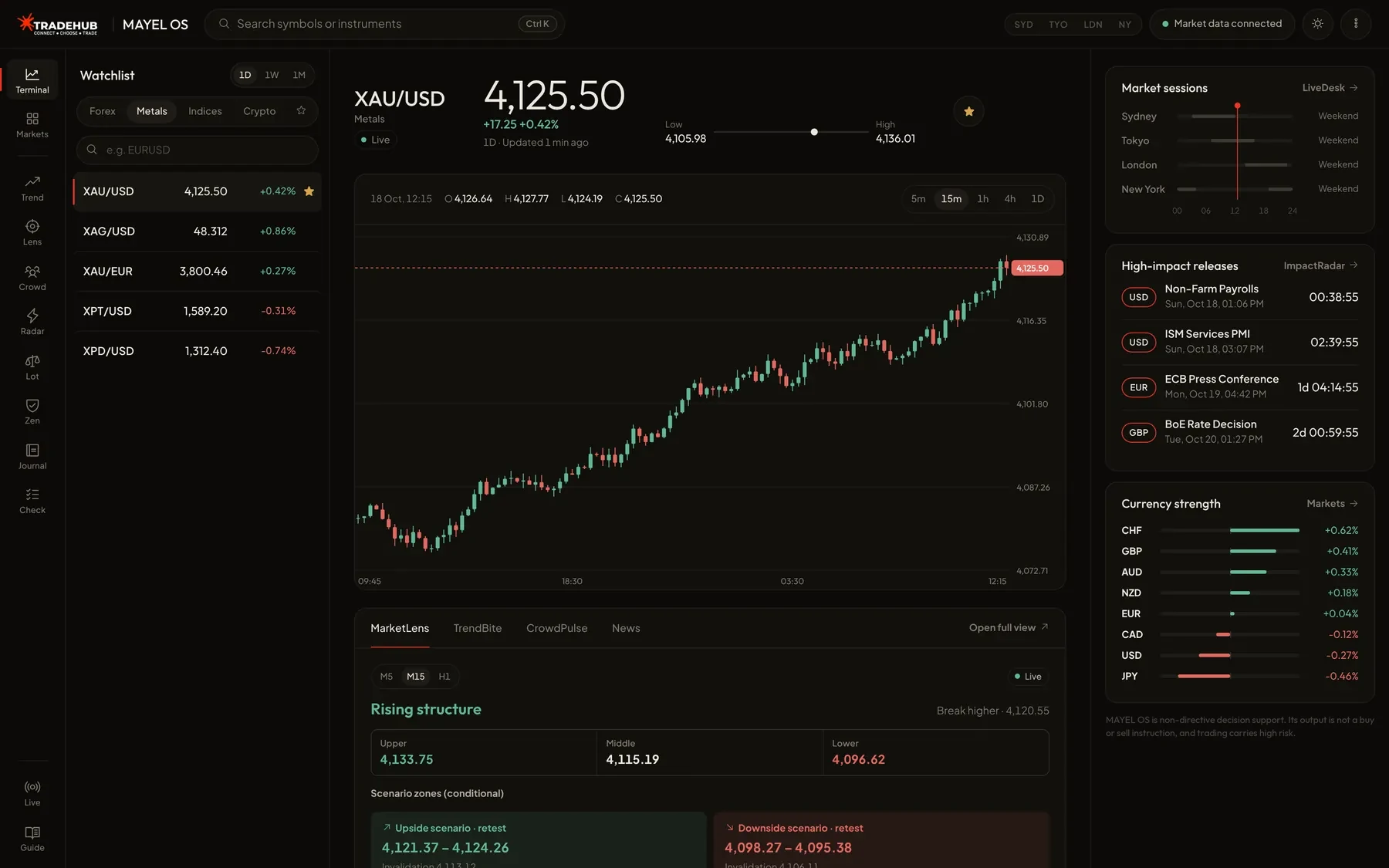
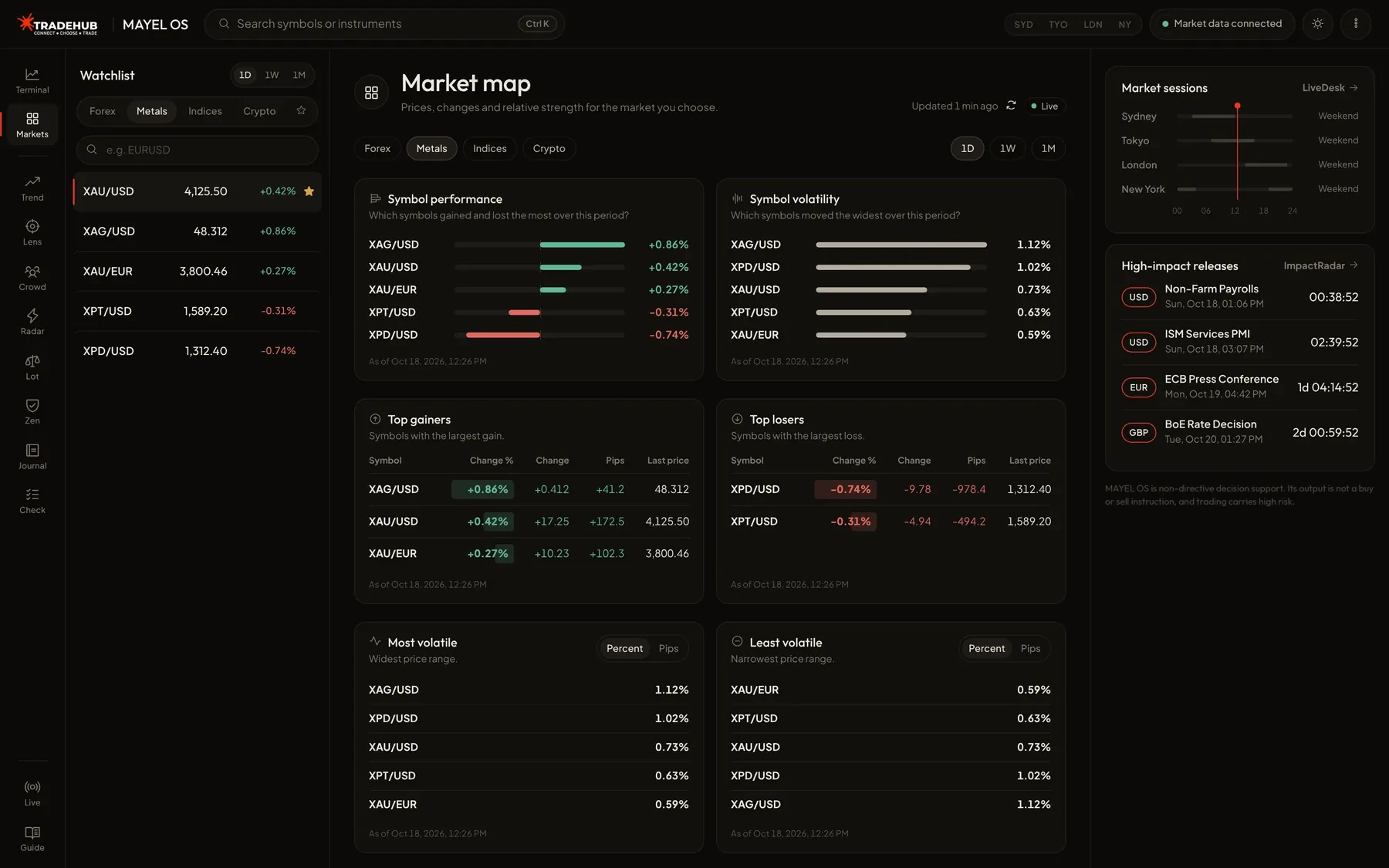
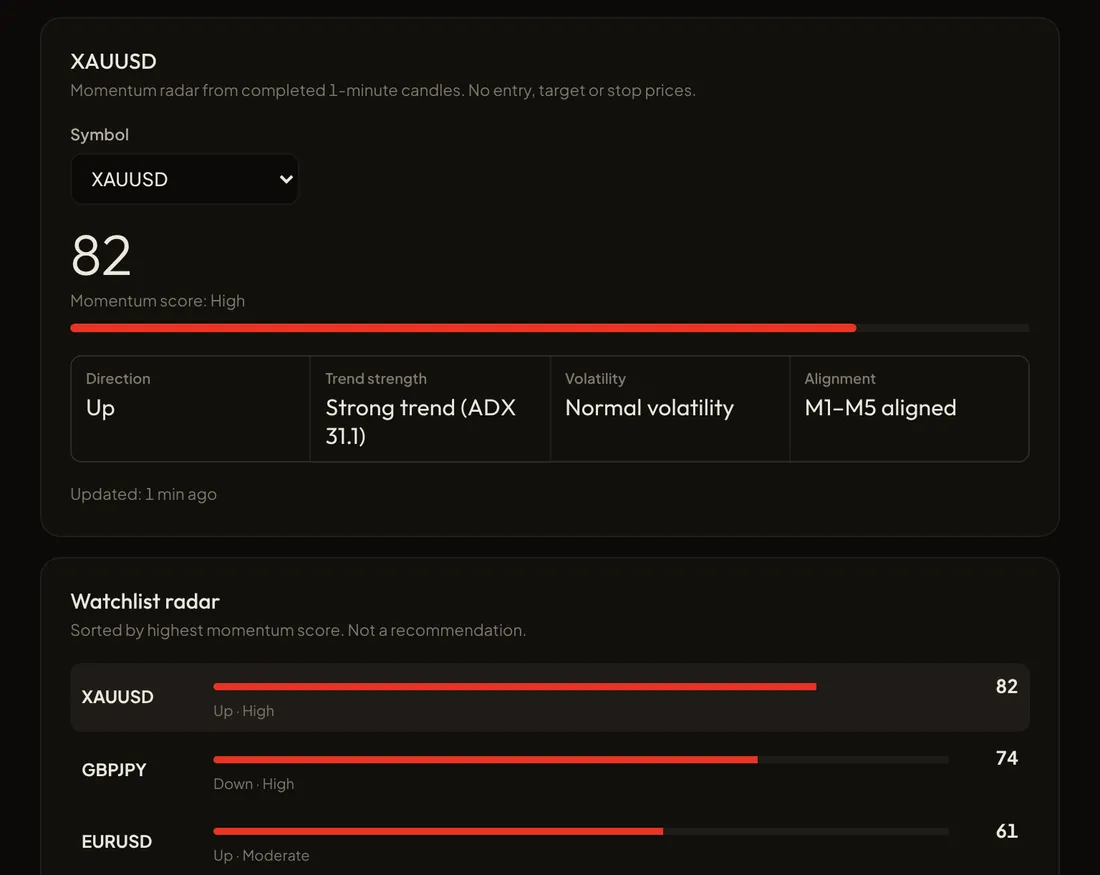
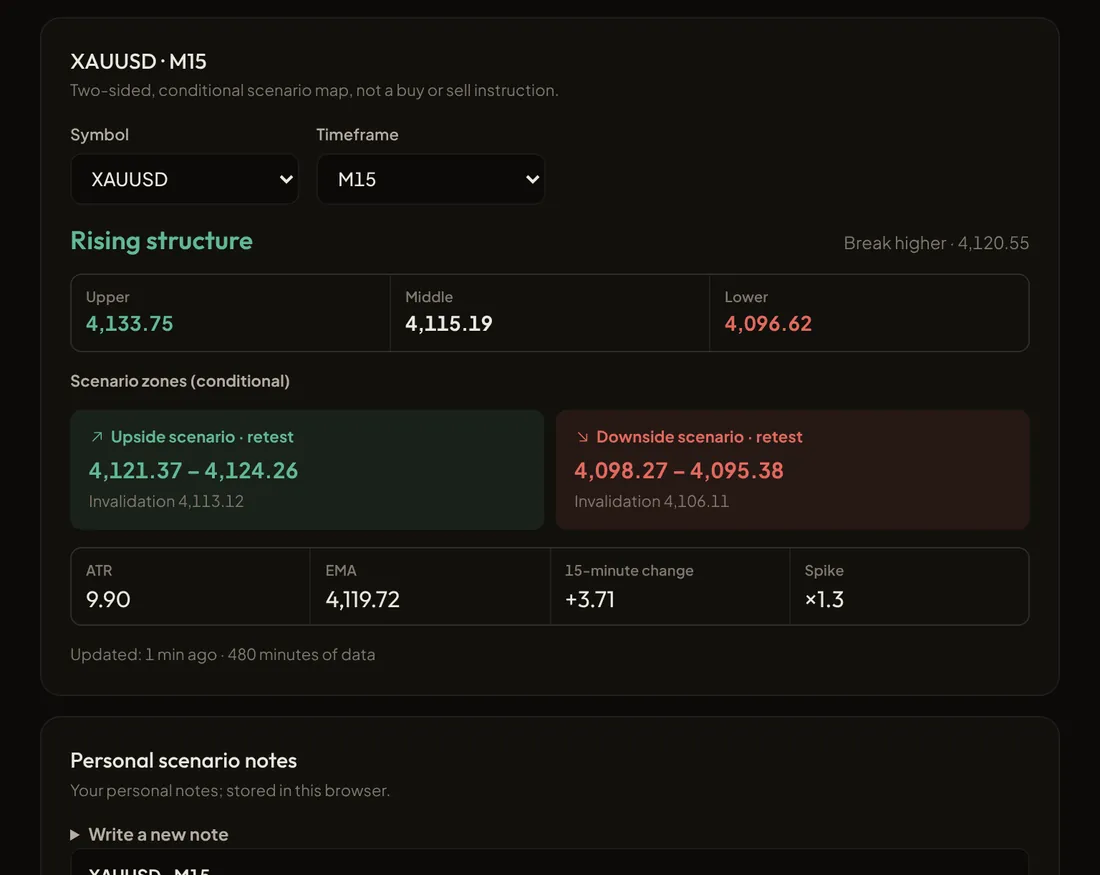
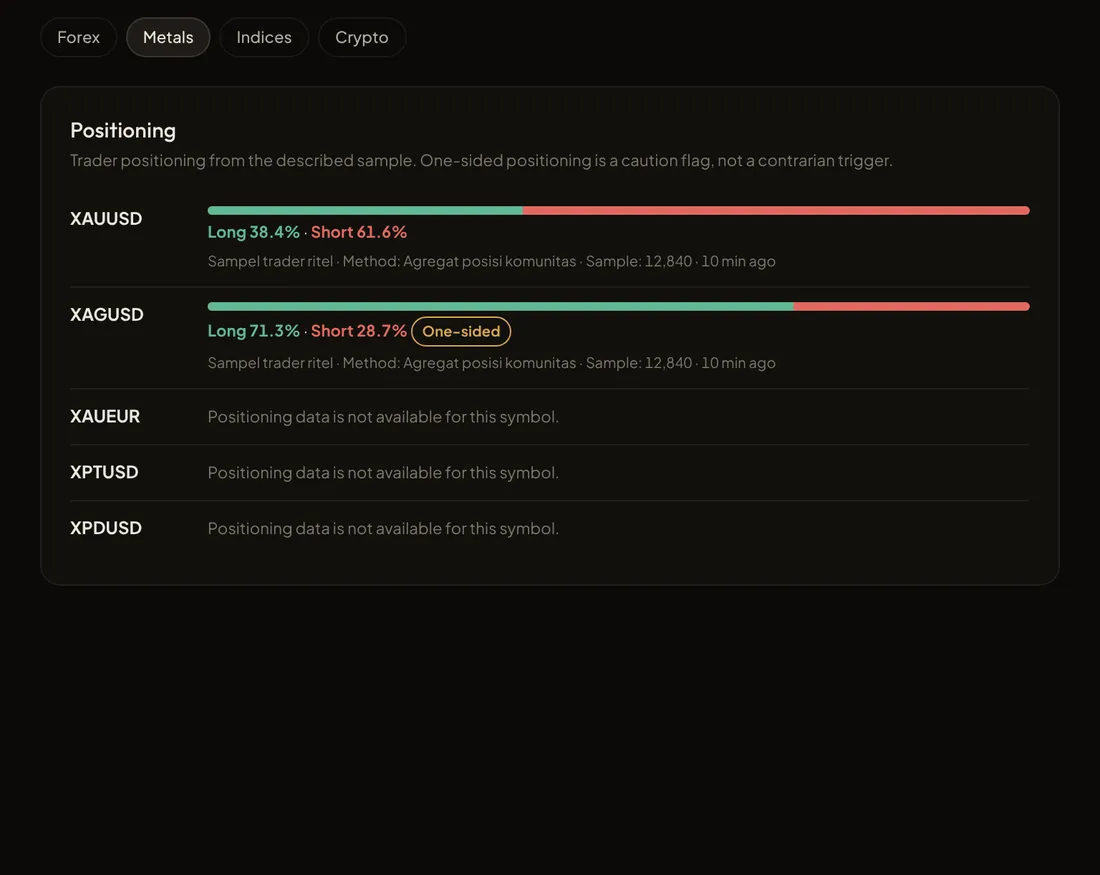
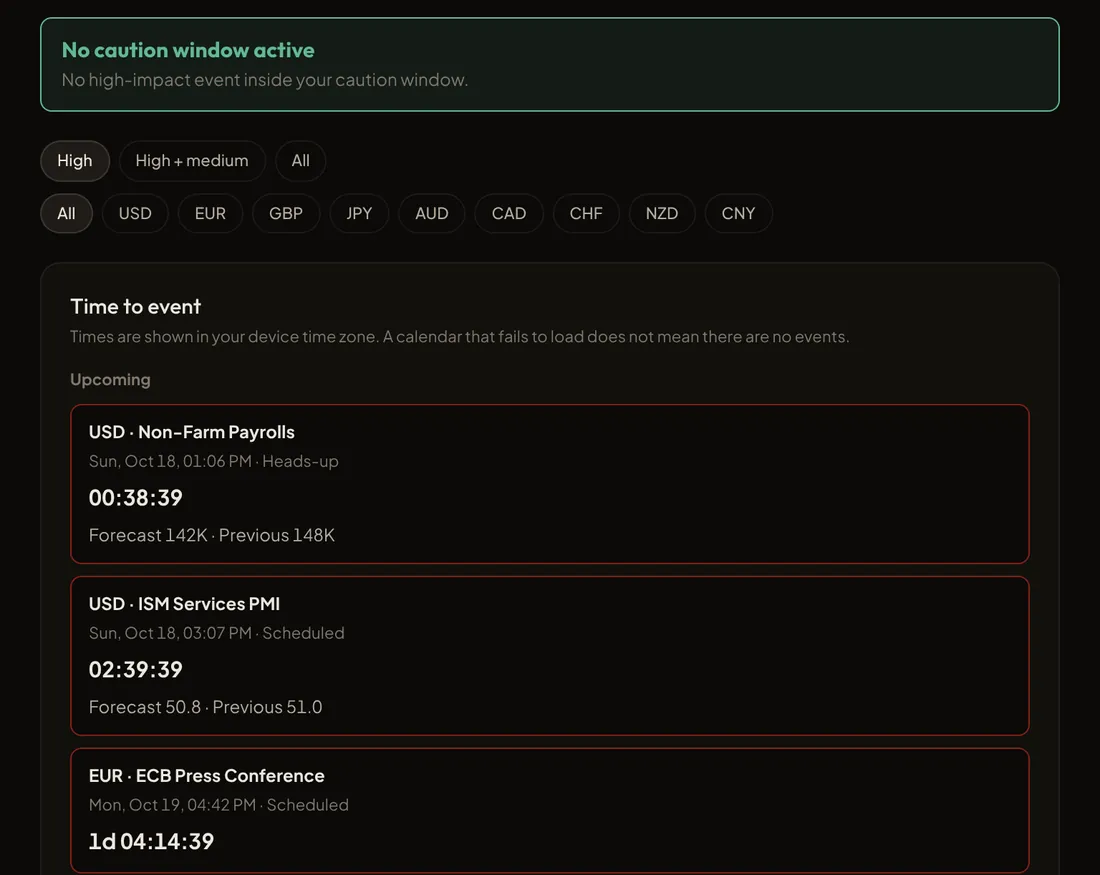
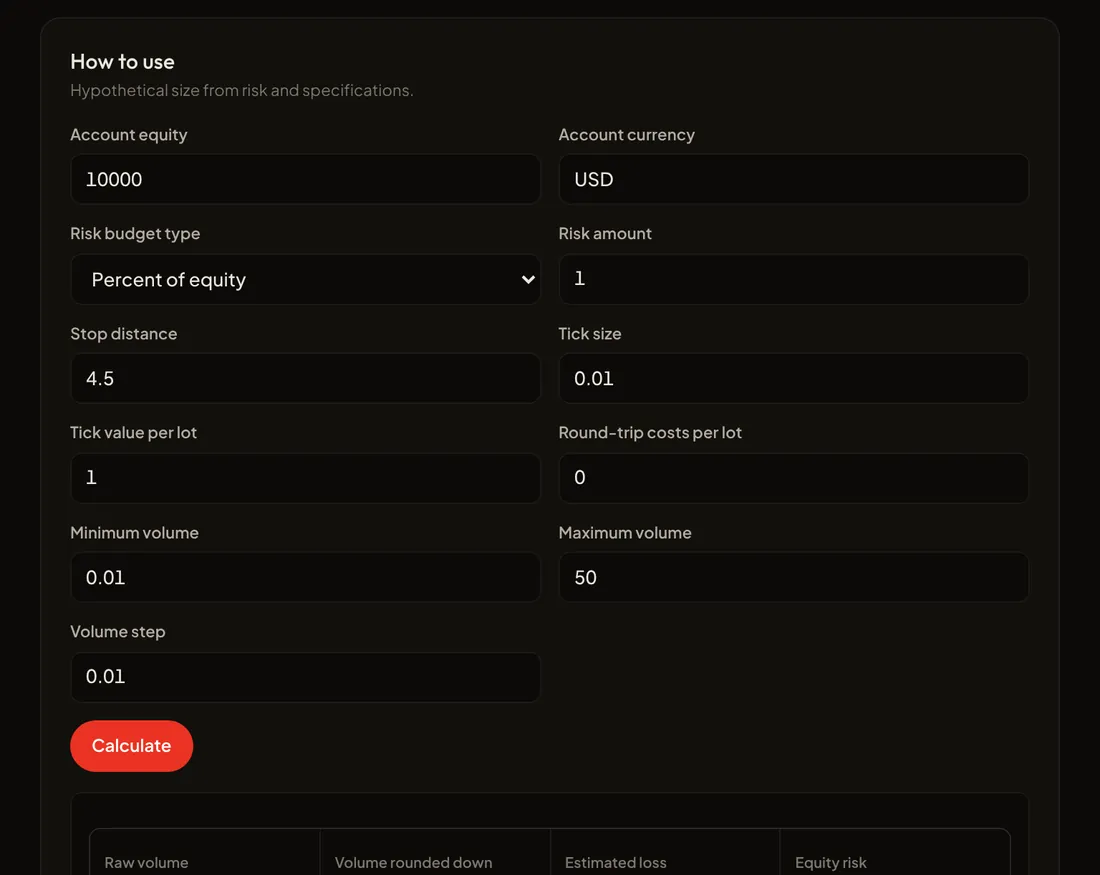
Real Nexus Vizion screenshots filled with illustrative data. The figures are not current market conditions and not signals.
Eight instruments
Detect
Find symbols worth reviewing and separate real moves from traps.
3 instruments
- TrendBite
A momentum and trend radar that builds a watchlist of symbols worth a closer look.
- Assesses trend strength, momentum and volatility fit across several timeframes at once.
- The result is a ranked watchlist with its reasons, with no entry price, target or stop.
Open in workspace · data status shown there.
- MarketLens
Price-structure validation to tell a real break from a fakeout.
- A two-sided scenario map with conditional entry zones and their invalidation levels.
- Not a buy or sell instruction. Analysis is held during high-impact news windows.
Open in workspace · data status shown there.
- CrowdPulse
Retail positioning and sentiment context from licensed sources.
- Flags heavily one-sided positioning as a point of attention, not a contrarian trigger.
- Each source is shown separately with its observation time. Missing data is never replaced by 50:50.
Open in workspace · data status shown there.
Protect
Guard your capital from economic-release shocks and wrong position sizes.
2 instruments
- ImpactRadar
A monitor for high-impact economic releases with caution windows you can set.
- Each event's state: scheduled, approaching, released, updated, delayed or cancelled, in your local time.
- When sources disagree on the release time, the precise countdown is held until resolved. A calendar that fails to load is never shown as "no events".
Open in workspace · data status shown there.
- LotGuard
A position-size calculator from the risk budget and stop distance you choose. For a quick sum outside the workspace, use the Trading Calculators.
- Uses the instrument's contract specification. Size always rounds down and is never quietly lifted to the minimum lot.
- A hypothetical calculation: it sends no orders and does not judge whether a trade is worth taking.
Open in workspace · data status shown there.
Control
Help you keep the session and loss rules you set for yourself.
1 instrument
- ZenMode
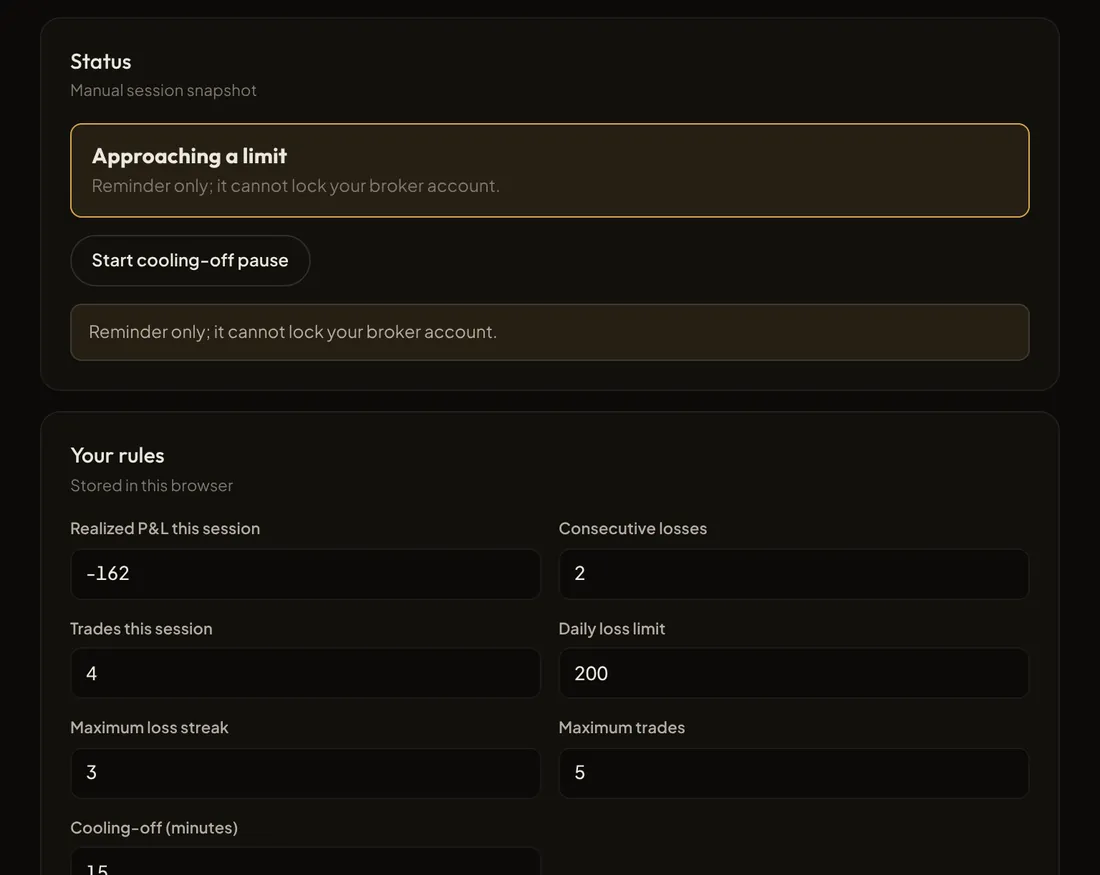
A discipline reminder built from the session, daily-loss, losing-streak and trade-count rules you set.
- Warns you and suggests a pause when a limit is reached. A manual pause is never cleared by the daily reset.
- It does not close positions or lock your broker account. If journal data is incomplete, the status is "cannot be verified", not "safe".
Open in workspace · data status shown there.
Evaluate
Turn your trading history into honest evaluation.
2 instruments
- PipPrint
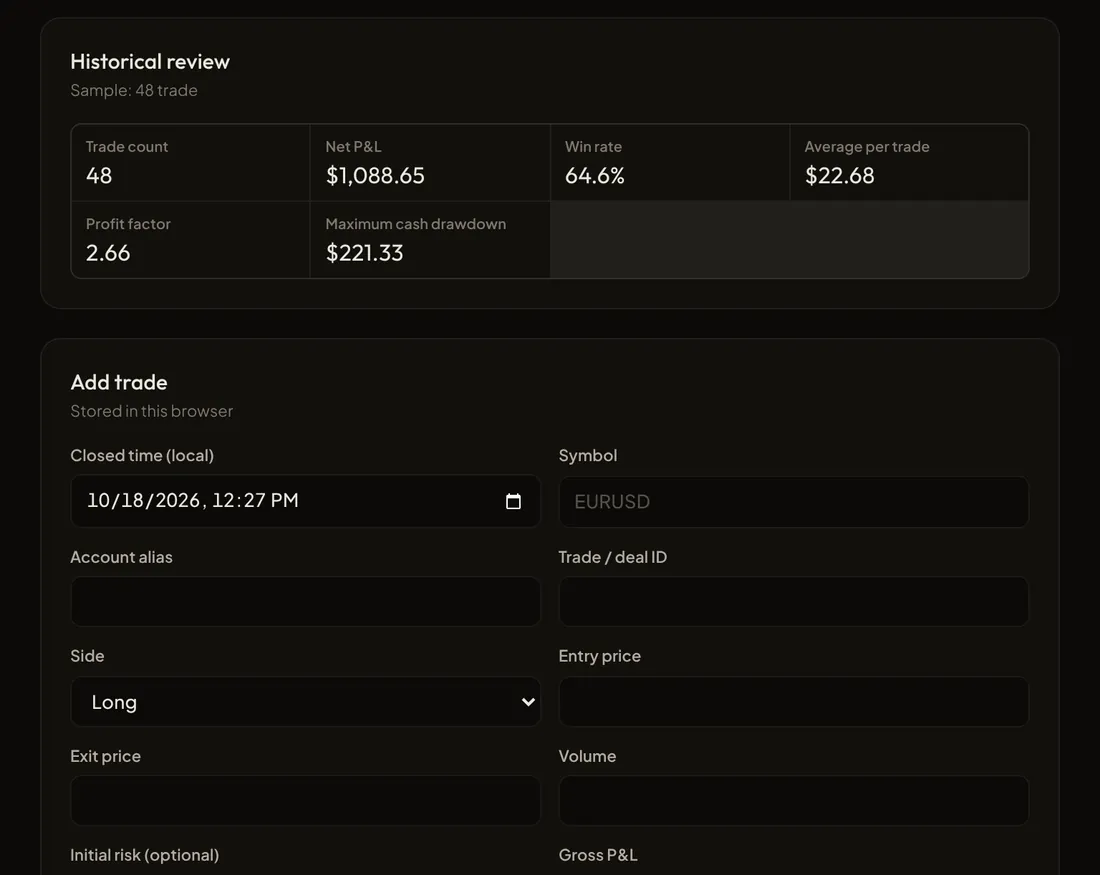
A trading journal and performance evaluation from the trades you log or import.
- Win rate, expectancy, profit factor and drawdown always come with their sample size and period.
- Corrections are stored as new revisions. Earlier history is never deleted.
Open in workspace · data status shown there.
- TradeMind
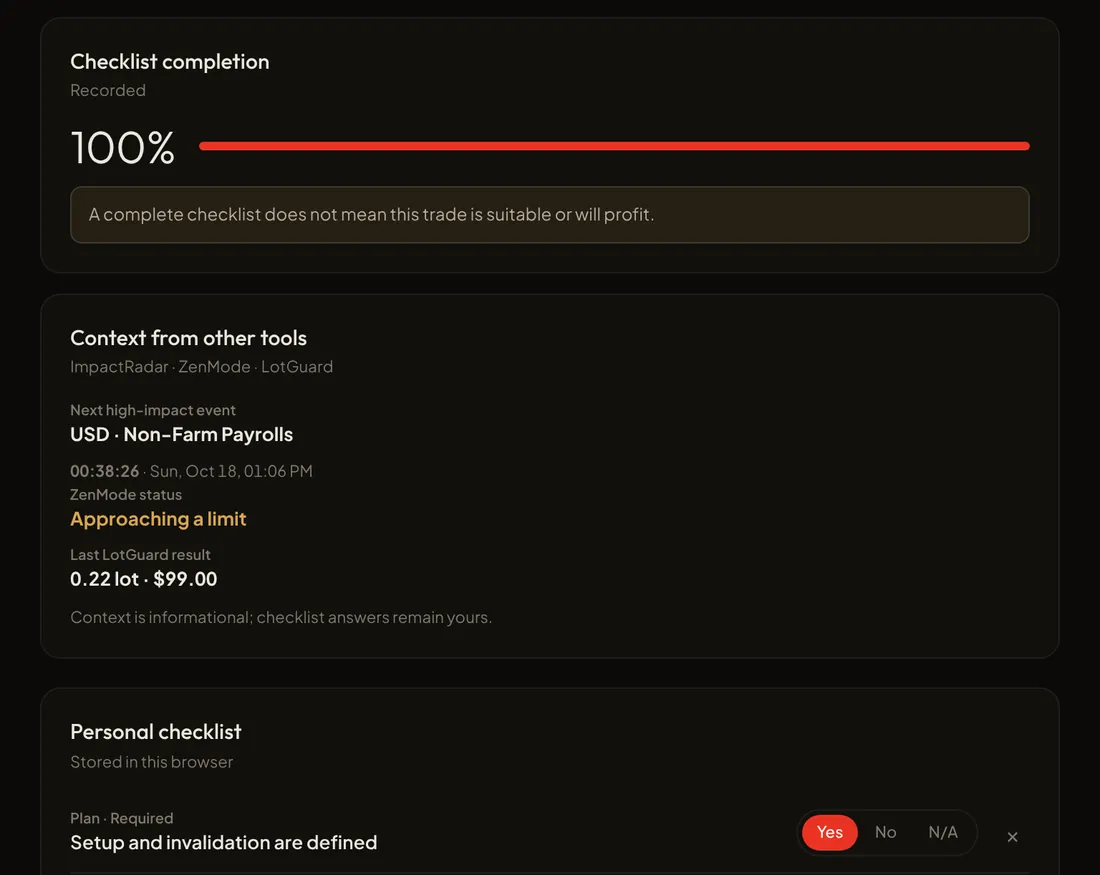
A pre-trade checklist you build yourself to check a trade against your plan.
- Links context from LotGuard, ImpactRadar and ZenMode, each with its data time.
- A 100% checklist means complete, not that the trade is safe or sure to win.
Open in workspace · data status shown there.
How Nexus Vizion works
Three principles that apply to all eight instruments.
- Data first, then conclusions
Every result carries its source, time and data quality. Late, conflicting or incomplete data is flagged, not hidden.
- Better silent than guessing
When critical data is not fit for use, the instrument holds back its conclusion. Missing numbers are never filled with guesses or treated as neutral.
- You make the decision
Nexus Vizion places no orders, holds no funds, and never turns analysis into an instruction. The execution decision is always yours.
Status of every result
| OK | All required data passed its checks. |
|---|---|
| Partial | Some supporting data is unavailable. The limits are stated clearly, and affected fields are left out. |
| Abstain | Critical data is not fit for use, so no conclusion is shown as valid. |
Nexus Vizion instrument logic runs inside TradeHub's systems, not on this page. This page only explains how it works in general. No software removes market risk. Nexus Vizion exists to reduce operational mistakes and help you keep the limits you set.
Product boundaries
So it is clear what you can and cannot expect from Nexus Vizion.
Nexus Vizion is
- A manual, non-directive decision-support tool.
- Eight equal instruments within one product.
- A data explainer: source, time and limitations are always visible.
Nexus Vizion is not
- A signal service or buy/sell recommendation. Filtered signals live in Nexus Signal, a separate service.
- Automated execution or fund management. Your money stays with your broker.
- CopyTrade Hub or Live Trade. Both are separate services.
Tool map: practise manually in Trade Academy
Each instrument has a free manual-practice counterpart in Trade Academy. For a quick check outside the workspace, the calendar, TradingView charts, and heatmap are in Trading Tools.
| Tool | Stage | Function | Practise in | Status |
|---|---|---|---|---|
| TrendBite | Detect | Momentum and trend radar for a watchlist. | Level 1 | Available |
| MarketLens | Detect | Structure, fakeout and two-sided scenarios. | Level 3 | Available |
| CrowdPulse | Detect | Retail positioning and sentiment context. | Level 3 | Available |
| ImpactRadar | Protect | High-impact releases and caution windows. | Level 2 | Available |
| LotGuard | Protect | Position size from your risk budget. | Level 4 | Available |
| ZenMode | Control | Discipline reminders and pauses from your rules. | Level 4 | Available |
| PipPrint | Evaluate | Journal and performance evaluation. | Level 5 | Available |
| TradeMind | Evaluate | Pre-trade checklist from your plan. | Level 3 | Available |
Ready to use Nexus Vizion? Open Nexus Vizion Workspace and start with the instrument you need most.
Frequently asked questions
About Nexus Vizion.
Does Nexus Vizion give buy or sell signals?
No. Nexus Vizion is non-directive: its instruments read data and show context, scenarios, calculations and reminders. No output is a buy or sell instruction, and the execution decision is always yours.
Will Nexus Vizion place trades for me?
No. Nexus Vizion is designed for a manual (Do It Yourself) style. It does not place orders, close positions, lock your broker account or hold funds. Your money stays with your broker.
Why does an instrument sometimes show no result?
Because Nexus Vizion would rather stay silent than guess. When critical data is late, conflicts between sources or is incomplete, the instrument shows Abstain and explains why. Partial results are clearly marked with their limits.
Does Nexus Vizion remove the risk of losses?
No. No software can remove market risk. Nexus Vizion helps reduce operational mistakes and helps you keep the risk limits you set for yourself.
How is it different from CopyTrade Hub and Live Trade?
CopyTrade Hub is a separate copy-trading service, and Live Trade by Circus Capital is live trading by human traders. Neither is one of the eight Nexus Vizion instruments.
Where does Nexus Vizion market data come from?
Market data (prices, candles, economic calendar, sentiment) is prepared by the TradeHub team through Nexus Vizion: collected, checked for freshness and delivered to the Workspace ready to use. You do not need to connect any data source. Every result shows its status (Live, Delayed, Market closed or Unavailable).
Where is Market Clock now?
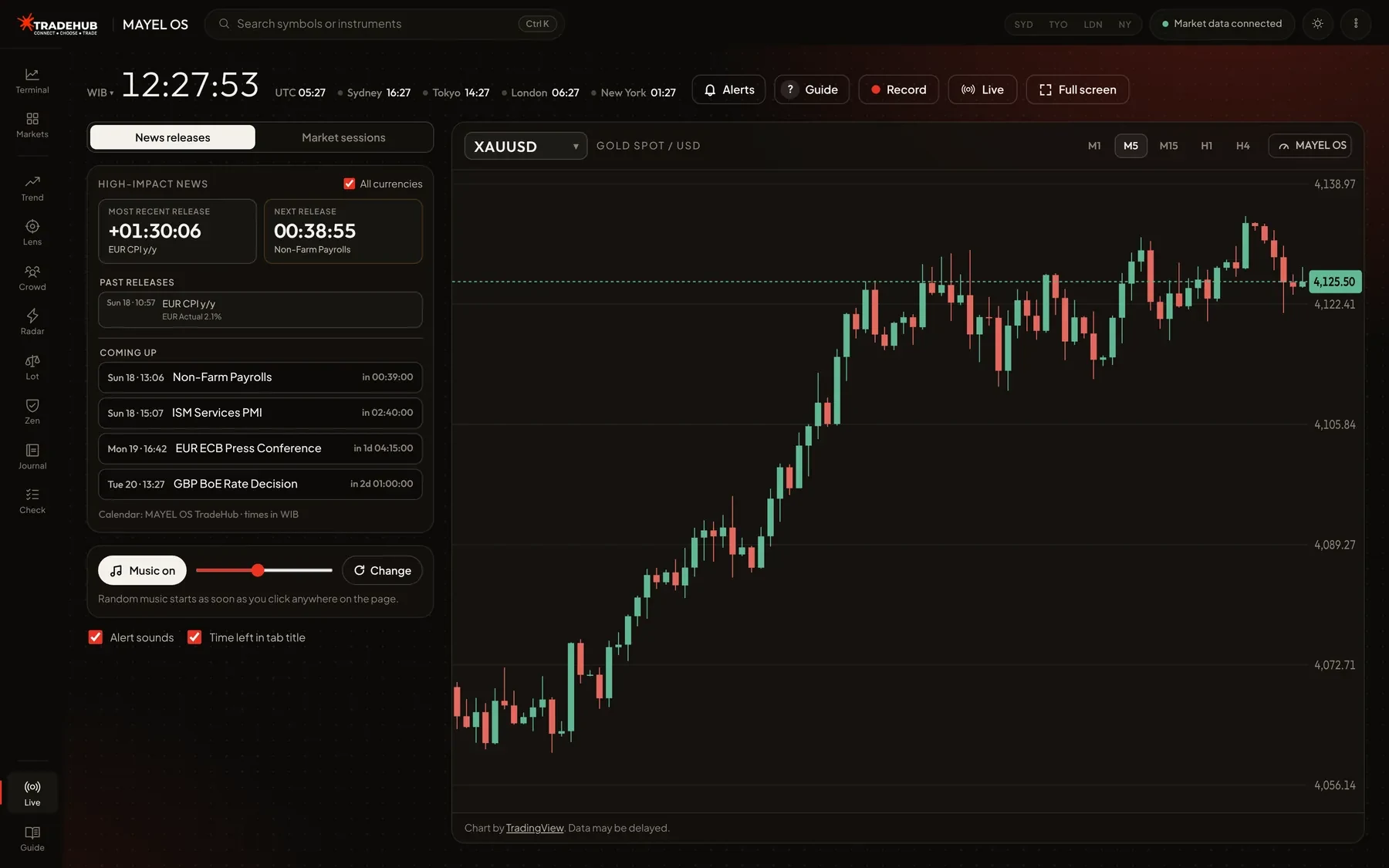
Market Clock is now LiveDesk inside Nexus Vizion Workspace: a large clock, countdowns to news releases and sessions, chart, MarketLens panel, background music, screen recording and a TikTok Live box. LiveDesk is built for live trading, for example while streaming. The separate Market Clock page is retired. Its old address redirects to LiveDesk.
How do I get access to Nexus Vizion?
Click Open Nexus Vizion Workspace at the top of this page. No sign-in is needed. Tools such as LotGuard and PipPrint take your inputs right away, while instruments that use live feeds show their data status.
When can I use it?
Now. Nexus Vizion is released and free to use without signing in. Each instrument still shows its data status (Live, Delayed, Market closed).
Follow TradeHub
Official channels, free and open. Connect Hub
 LiveDesk
Shown on this screen and, if allowed, as desktop notifications even when the tab is in the background.
Every second, news or session.
A countdown to the next release or session open and close, a count-up after it, with your chosen market always in view.
Loading news schedule…
Key releases this week
Loading release schedule...
Calendar: Nexus Vizion TradeHub. Times follow your device time zone.
Times follow your device time zone (). Music plays at random from Kevin MacLeod’s free library (incompetech.com, CC BY 4.0). Settings are saved in this browser only.
Every feature on this page, short and practical. Press ? any time to open this guide.
Quick start
- Choose the countdown source: News releases (the nearest high-impact release, straight from the calendar) or Market sessions for trading outside news hours.
- In Market sessions, the board counts down to the next session open or close (Sydney, Tokyo, London, New York) and the list shows which sessions are open. Session hours follow each city's daylight saving; the market is closed at the weekend.
- Times follow your laptop's time zone. To change it, click the zone label (e.g. WIB ▾) next to the main clock and pick another; choose Auto to go back to the laptop zone.
- Press Full screen (or F) to show only this tool.
Countdown board
- The board colour follows the ImpactRadar windows: amber for heads-up (≤60 min), red when near (≤15 min), blinking in the final minute.
- After the release it counts up: amber during the caution window (15 min), then green.
- Candle close under the board shows time left on the M1 and chart-timeframe candles, handy for waiting for the first post-news candle to close.
Chart and instruments
- Switch instruments from the menu at the top left of the chart (XAUUSD, XAGUSD, EURUSD, GBPUSD, USDJPY, DXY, US30, NAS100, BTCUSD).
- Change timeframe with M1 to H4. The gauge and candle timer follow it.
- MarketLens and TrendBite always analyse XAUUSD, because the price source is gold only.
Nexus Vizion panel
- All instruments live in the Nexus Vizion panel: open/close it with the Nexus Vizion button (or A). Click the instrument name at the top left of the panel to switch instruments and see each one's status.
- MarketLens · Auto: Nexus Vizion MarketLens bias gauge, spot price, upper/middle/lower levels and written analysis that refreshes automatically (see the “Updated” line, ↻ to refresh).
- The MarketLens news filter is on by default: from 15 minutes before to 15 minutes after high-impact news (following ImpactRadar), analysis is held (ABSTAIN) and the Manual structure checks are locked. Prices are still recorded.
- Entry zones & invalidation: MarketLens writes two conditional scenarios. The up scenario only applies if a candle closes above the Upper level: a retest zone just above it, invalid if price falls back below the invalidation point. The down scenario is the mirror. Not a buy or sell signal.
- Turn the filter off with Turn off (click twice to confirm; hover the filter line for the full explanation). While it is off, an amber warning box shows, turning red and blinking during a news window. Click Turn on to switch it back.
- MarketLens · Manual: write the up, down and invalidation levels before the release (or copy them from Auto), then tick the 4 structure checks after the candle closes. 4/4 = valid break; fewer = watch for a fakeout.
- TrendBite: XAUUSD momentum score, active after 200 M1 candles (~3.3 hours with the page open).
- ImpactRadar: event state and the next high-impact releases. Set the heads-up, near and caution minutes here; the left board follows them.
- LotGuard: enter equity, risk (% or $) and stop distance. Lots round down; below the minimum lot no size is shown.
- ZenMode: set a daily loss limit, losing streak and max trades. Status comes from the PipPrint journal; Manual pause holds until you click Resume.
- PipPrint: log every trade (side, lots, net P&L). Today/all metrics and CSV export are available.
- TradeMind: answer the checklist before entry. A “hard stop” item answered No sets the Blocked state. You can add your own items.
- CrowdPulse is not active yet because there is no licensed sentiment source.
TikTok Live
- Choose Live in the instrument menu, paste the TikTok live link and click Show.
- The video sits alongside the chart: ▣ changes its width, × closes it.
- If the live does not play inside the page, click ↗ (or L) to open TikTok right where that window is.
Alerts
- Click the bell Alerts button at the top right and switch it on. Allow desktop notifications if the browser asks, so alerts appear even when the tab is in the background.
- Choose what to be told about: high-impact news (5 minutes and 1 minute before, and at the release), market sessions opening/closing, XAU price levels you set in MarketLens · Manual, and MarketLens back on after a news window.
- Alerts also show as a small box at the bottom right of the page. Use Send a test to try it. The page must stay open (another tab is fine).
Music and sounds
- Calm music plays at random, back to back, after your first click on the page. Change (or N) plays another track, M toggles it.
- Alert sounds play at T-5 min, T-1 min, the last 10 seconds and at release.
- The screen is kept awake while a countdown is active.
Screen recording
- Press Record (or R) and choose a tab or screen. To capture sound, pick this tab and turn on audio sharing (Chrome).
- Press Stop: the video is saved to your Downloads folder, named after the news and time, as MP4 (H.264 + AAC, max 1920×1080, 30 fps) that plays straight away in QuickTime, Windows, on phones, or uploads to TikTok/YouTube.
- Works in full screen too. While the browser shows the recording prompt it leaves full screen; the page goes straight back, or shows a Back to full screen button if the browser needs one click.
Keyboard shortcuts
- F full screen · A analysis panel · M music · N next track · R record · L open live in a TikTok window · ? guide · Esc close menu/guide.
Data and limits
- Times follow your device time zone. Settings, journal and price data are stored in this browser only.
- MarketLens and TrendBite are computed on TradeHub's Nexus Vizion server; the page only sends price candles and shows the result, so it needs an internet connection.
- Spot price from the Nexus Vizion TradeHub feed (~30 s) may differ slightly from your broker. If the price is older than 3 minutes, analysis shows STALE_DATA and is not written.
- Auto schedule needs the TradeHub calendar server; if unavailable, use Market sessions mode. The news filter reads this schedule too, so high-impact news is still caught in Market sessions mode.
- Everything on this page is a decision aid, not a buy or sell signal. Forex and CFD trading is high risk.